HR · after a couple of days · 5 min read
Bring your drivers in
Wait until your office has run the board for a couple of days and knows the workflow — until then shift times ring nobody, which is the point. Then the drivers get the app. A driver is on your roster whether or not their login works, so nobody waits on an email to be scheduled or dispatched.
Before you invite
The first sync put your drivers in People, matched to Amazon’s roster by transporter id. Check two things on each record first: the email address, because an invite goes wherever it says and a typo is a link nobody ever receives; and the home station.
Bringing them in
Invite everybody at once, or one driver at a time.
People › Invite everyone · People › a driver › Invite to the app
Everybody except an offboarded driver can hold a login — somebody suspended for a few days is still employed. A driver’s card then says they were invited, and by whom.
Send them their sign-in guide.
yourcode.opsbrio.com/guide/signin
A short page drawn in your company’s name: the OpsBrio app from the App Store or Google Play, your company’s code, the sign-in and notifications. It works without signing in, which is the point — the person reading it cannot get in yet. The invite links it too.
Have them turn notifications on.
The iPhone app asks the first time it opens; on Android a Turn on card does. Without it nothing rings — not the shift time, not the desk.
Show them what they will see.
yourcode.opsbrio.com/guide/app
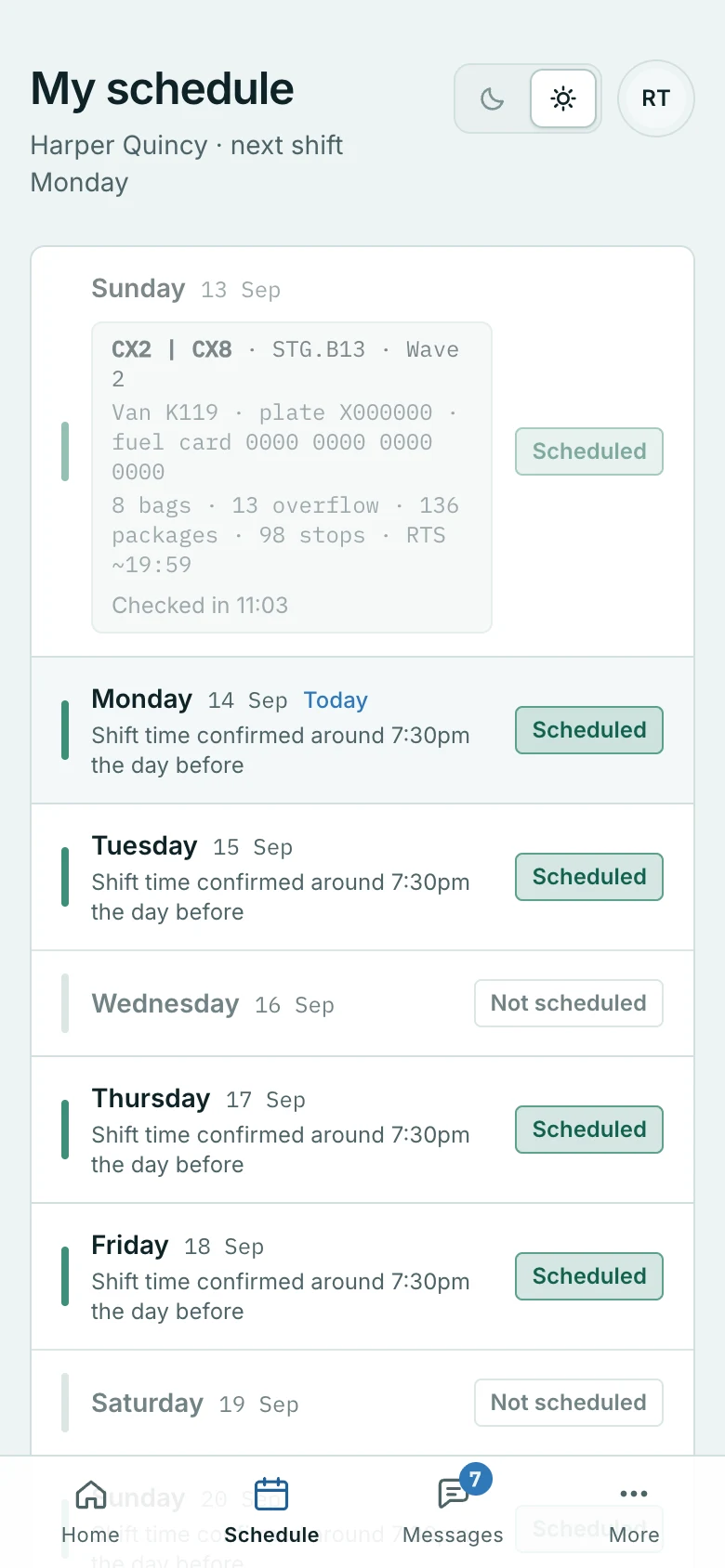
The drivers’ app guide: Home with their day and their van, Schedule, Messages and More — the DVIC timer, the clock-in and clock-out asks, their own scorecard.
The link lives 24 hours, and that is the thing that catches people out
The five ways somebody is locked out
They all look identical on a phone — “I can’t get in” — and each has a different cure, so the first job is to say which one it is. Their card on the profile answers most of it before you have to ask them anything.
- The link expired
- Their card says so in red. Send another one.
- They opened a link and never chose a password
- The card says exactly that, in amber. Resending the invite will not help — send a reset link instead, or they tap Forgot your password? on the sign-in page and the same email comes to them.
- The link was used by a machine
- A preview or a scanner fetched it first. Copy the invite link instead of emailing it (below).
- Their access is switched off
- They have a working password and still cannot get in. Their profile says so.
- They were offboarded
- The sign-in itself is refused, and their record says when and by whom.
One habit worth keeping: read their card before sending a second link. Sending one restarts the clock and destroys the evidence for the first, so you lose the thing that would have told you which of the five it was.
The driver whose email eats the link
Some mail systems and chat apps fetch a link to draw a preview of it — and because the link is a one-use credential, the preview spends it. A link pasted into a chat box has died the moment it was pasted, before anybody tapped anything.
So use Copy invite link on their card and hand that over — text it, or read it out. A copied link goes to a page with one button on it, and nothing is checked until that button is pressed, so a scanner’s look cannot burn it. Emailed links stay one tap, because there the driver’s own tap is the first fetch.
On their phone
Drivers use the OpsBrio app from the App Store or Google Play — one app for every company; they type your company’s code once and it opens your portal from then on. The app shows the portal itself, so what we change reaches it the next time it opens, with no update to chase.