Scheduling · Dispatch · 15 min read
Where the week is made
OpsBrio needs to know one thing about your weekly schedule: where your team makes it. There are three choices. This guide shows how to check which one your company uses, how to make and publish each week with it, and how to build the next day’s Dispatch board. Every step says which app to open, which page to go to, what to click and what you will see.
Words used in this guide
- OpsBrio
- This app: the office’s website and the drivers’ phone app.
- Left menu
- The column of icons down the left side of every OpsBrio page. Each icon opens a page — like Settings. To see the pages’ names, click ☰ at the top of the menu.
- Cortex
- Amazon’s website for your company, logistics.amazon.com. Its Scheduling page holds Amazon’s schedule for each week.
- Draft
- A week that is not published yet. Drivers can’t see it.
- Publish
- Make a week visible to drivers. Drivers see a published week on the Home screen of their OpsBrio app.
- Work block
- One route Amazon gives your station for one day — a start time, a length and a van size. In Cortex, each block is given to one driver.
- Wave
- The time a group of drivers comes into the station to load their vans.
- Roster, Backup
- Statuses on the Dispatch board. A Roster driver drives a route; a Backup is on standby in case somebody is missing.
- Dispatch board
- OpsBrio’s Dispatch page: one line for each driver on one day, with their van, wave and shift.
First: find out which choice your company uses
In OpsBrio, click Settings in the left menu.
OpsBrio › Settings
The Settings page opens with its cards.
Click the card Where the week is made.
Three boxes sit side by side: OPSBRIO, CORTEX DRAFT and CORTEX. The one your company uses says so under its name — “Where your week is made now”, “Planning in Cortex since …” or “Following Cortex since …”.
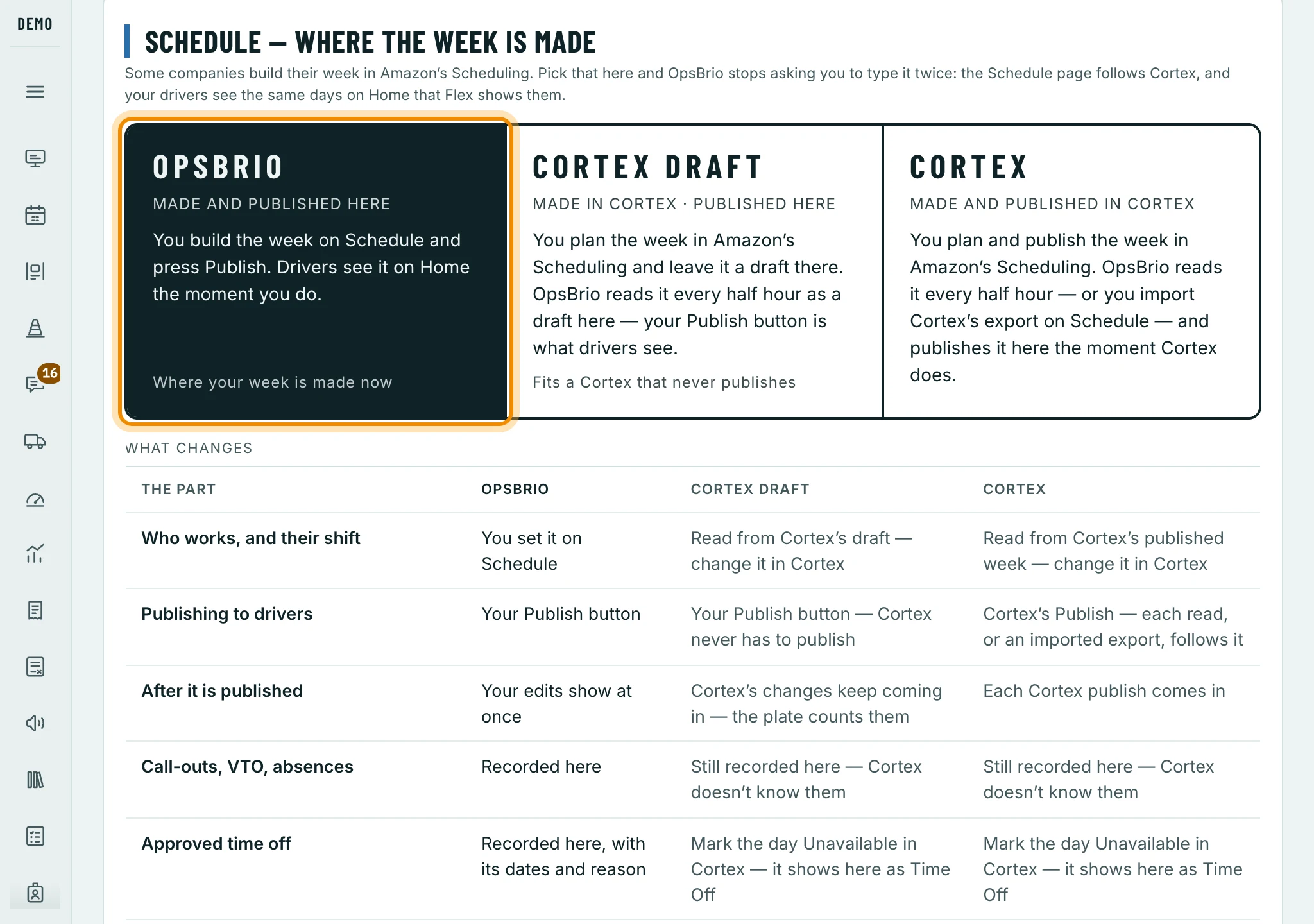
Settings › Where the week is made. The dark box, circled, is the choice your company uses — here OPSBRIO. The table under the boxes says what changes with each. Read the part of this guide for that box.
OPSBRIO — read Choice 1.
CORTEX DRAFT — read Choice 2.
CORTEX — read Choice 3.
Then everybody reads “Build tomorrow’s Dispatch board”.
- OPSBRIO
- You make the week in OpsBrio and publish it in OpsBrio. Every company starts here.
- CORTEX DRAFT
- You make the week in Cortex and leave it as a draft there. OpsBrio reads Cortex every 30 minutes and copies the draft in. You publish it in OpsBrio.
- CORTEX
- You make the week in Cortex and publish it in Cortex. OpsBrio reads Cortex every 30 minutes, copies what Cortex published, and publishes it in OpsBrio by itself.
Whichever box is picked, two things always stay in OpsBrio: call-outs, VTO and absences (Cortex doesn’t know about them), and waves, vans, routes and notes.
Choice 1 — OPSBRIO: make and publish the week on OpsBrio
In OpsBrio, click Schedule in the left menu.
OpsBrio › Schedule
You see one week: a line for each driver and a column for each day, Sunday to Saturday.
Go to the week you want.
Use the arrows ‹ › beside the week’s name at the top. Today brings you back to this week; Jump to week… goes further.
If the week is empty, click Generate from pattern.
OpsBrio fills in every driver’s usual days. The week is a draft — drivers can’t see it yet.
Change the days that are different this week.
Click a driver’s box on a day to change that day; on an empty box, click Add this day. The Run the week guide explains every change.
On OpsBrio’s Schedule page, click Publish this week (top of the page).
Drivers see the week in their app straight away. You can still change it afterwards, and drivers see each change.
If some drivers have no Saturday or Sunday on the schedule that week, OpsBrio lists them first: click Fix the week first to change their days, or Publish anyway.
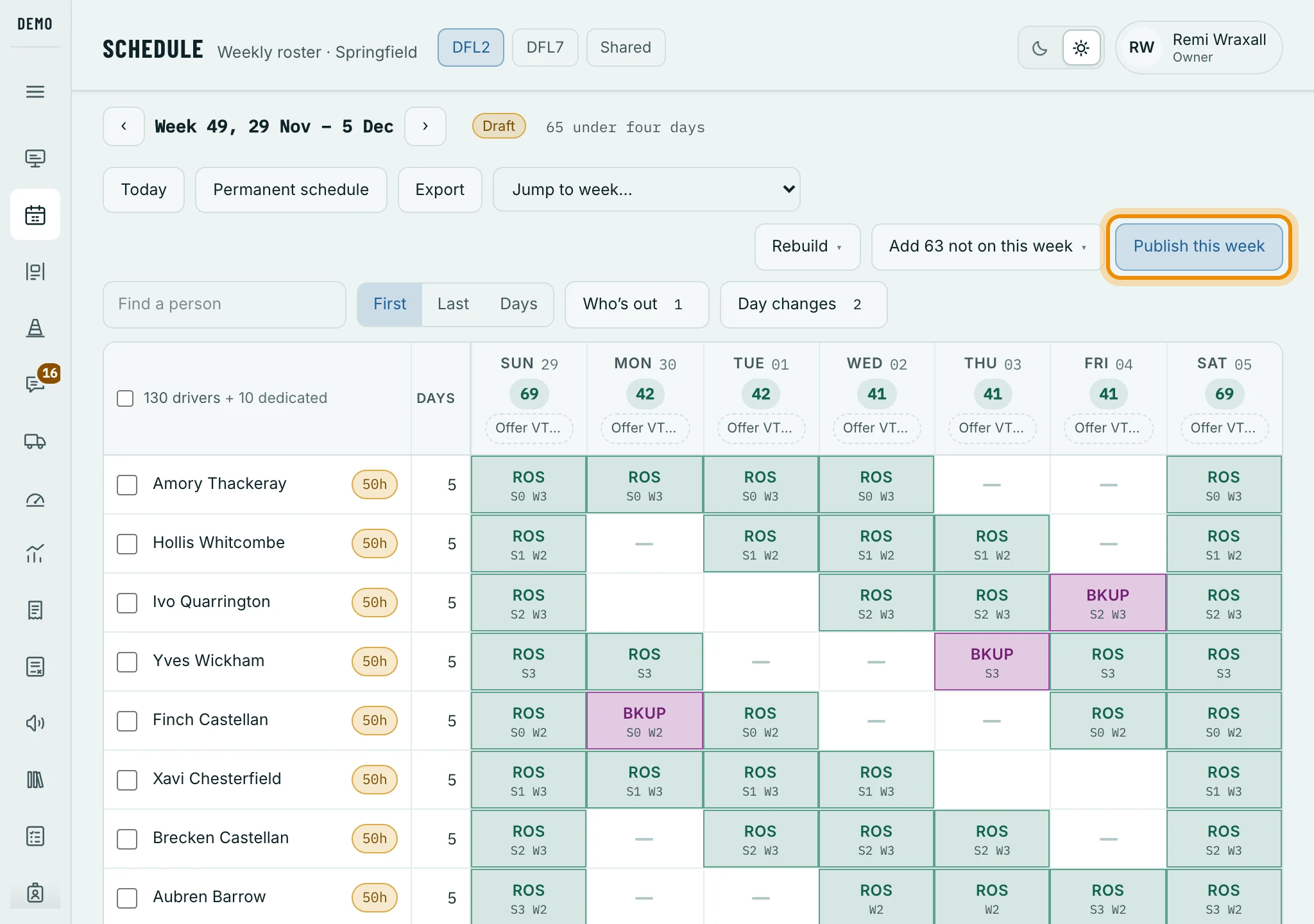
OpsBrio’s Schedule page with a week that is still a draft. Publish this week, circled, is at the top right. R is a Roster day, B a Backup day.
Choice 2 — CORTEX DRAFT: draft in Cortex, publish on OpsBrio
Make the week in Cortex and leave it as a draft.
Cortex › Scheduling
You don’t need to click Publish in Cortex.
Wait up to 30 minutes.
OpsBrio reads Cortex every 30 minutes and copies this week and next week in.
In OpsBrio, click Schedule in the left menu and go to that week.
OpsBrio › Schedule
Across the top of the week is a banner with an outlined CORTEX DRAFT label and the words “Cortex’s draft, read every half hour. Nobody sees it until you publish it here.” The week also says Draft — drivers can’t see it.
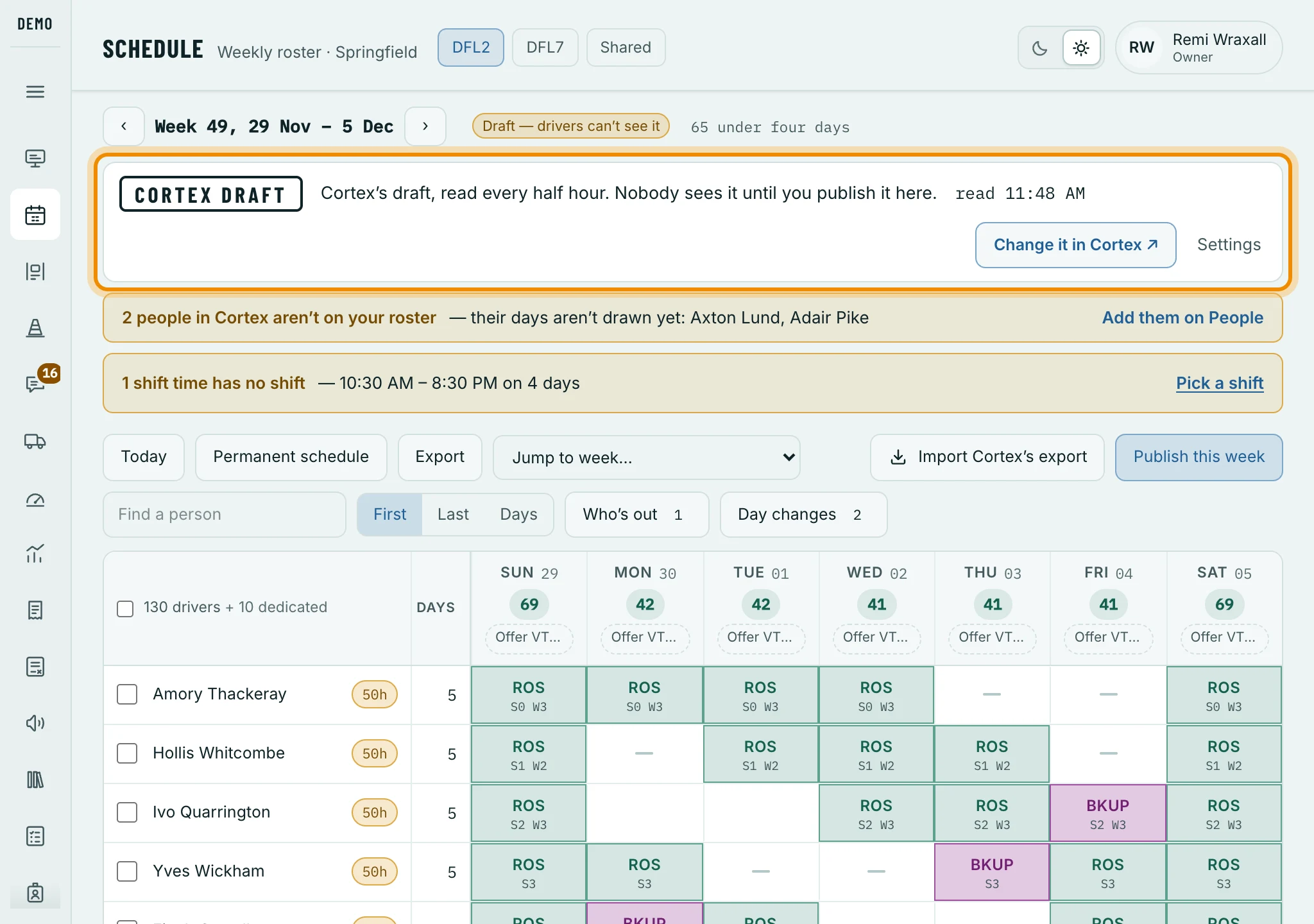
A week drafted in Cortex, on OpsBrio’s Schedule page: the CORTEX DRAFT banner, circled, with when OpsBrio last read Cortex — and two yellow notes under it. Read the yellow notes under the banner, if there are any.
Each note says what OpsBrio could not copy and how to fix it — for example a driver who isn’t in OpsBrio yet, or a Cortex shift time that matches none of your OpsBrio shifts (click Pick a shift and choose one; OpsBrio remembers it).
On OpsBrio’s Schedule page, click Publish this week (top of the page).
A box opens with the week, your station and how many working days drivers will see. Click Publish to drivers. Not yet closes the box without publishing.
If some drivers have no Saturday or Sunday on the schedule that week, OpsBrio lists them first: click Fix them in Cortex ↗ to change their days in Cortex, or Publish anyway.
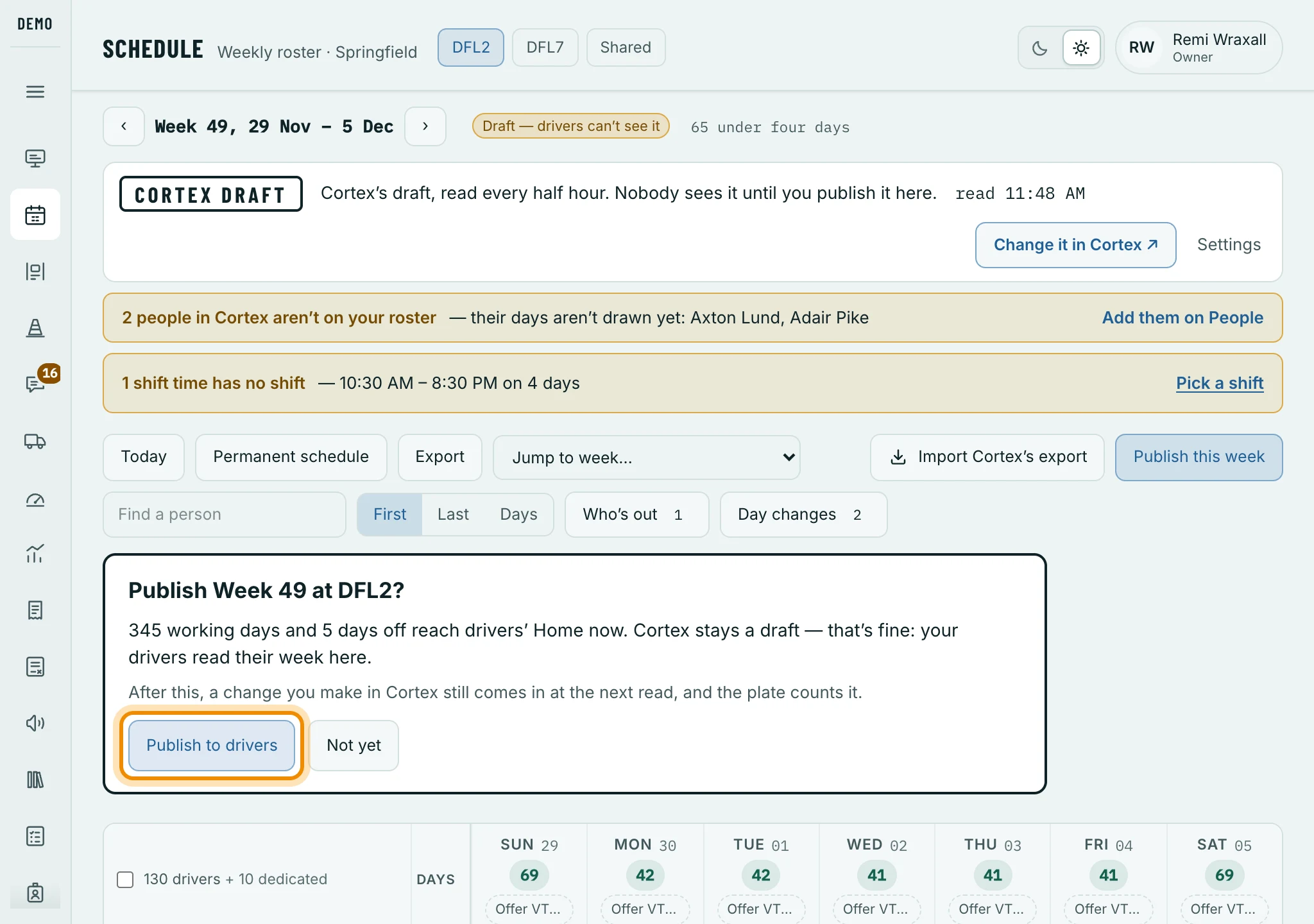
The box Publish this week opens. Publish to drivers, circled, publishes the week; Not yet closes the box. Check the banner.
It now says FROM CORTEX, filled in, with when the week was published and who published it. Drivers can see the week.
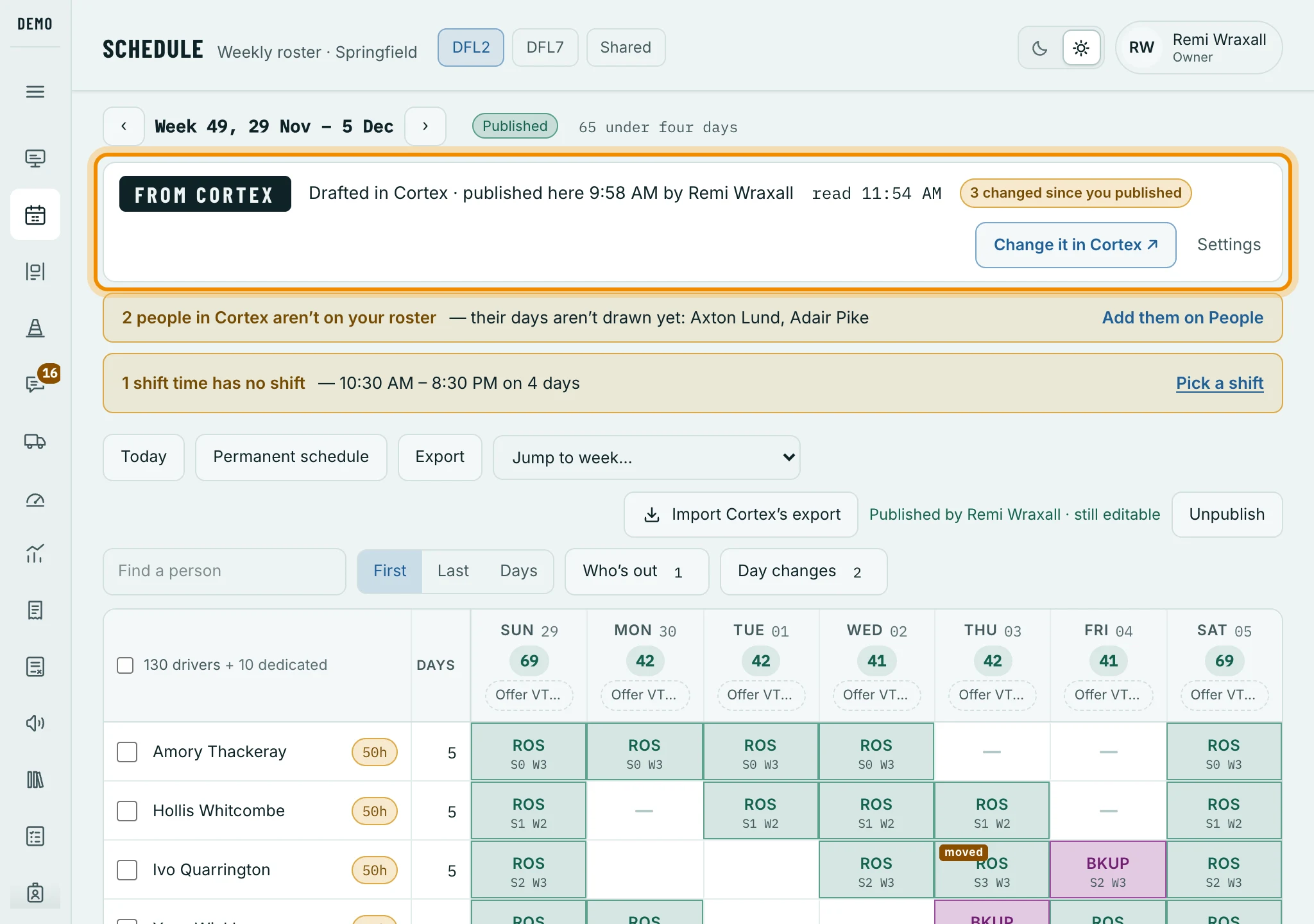
Published: the banner, circled, says FROM CORTEX, filled in, with when and by whom — and, as changes made in Cortex come in, “3 changed since you published”.
Choice 3 — CORTEX: make and publish the week in Cortex
Make the week in Cortex and publish it there.
Cortex › Scheduling
Use Cortex’s Publish until … button at the top of its Scheduling page.
Wait up to 30 minutes.
OpsBrio reads Cortex every 30 minutes, copies the days Cortex published and publishes them in OpsBrio by itself. A day still a draft in Cortex is not copied — a note on OpsBrio’s Schedule page says so.
In OpsBrio, click Schedule in the left menu and go to that week.
OpsBrio › Schedule
Across the top of the week is a banner with a filled-in FROM CORTEX label and the words “This week and next come from Amazon’s Scheduling, read every half hour”. Generate from pattern and Publish this week are not shown — Cortex makes and publishes the week now.
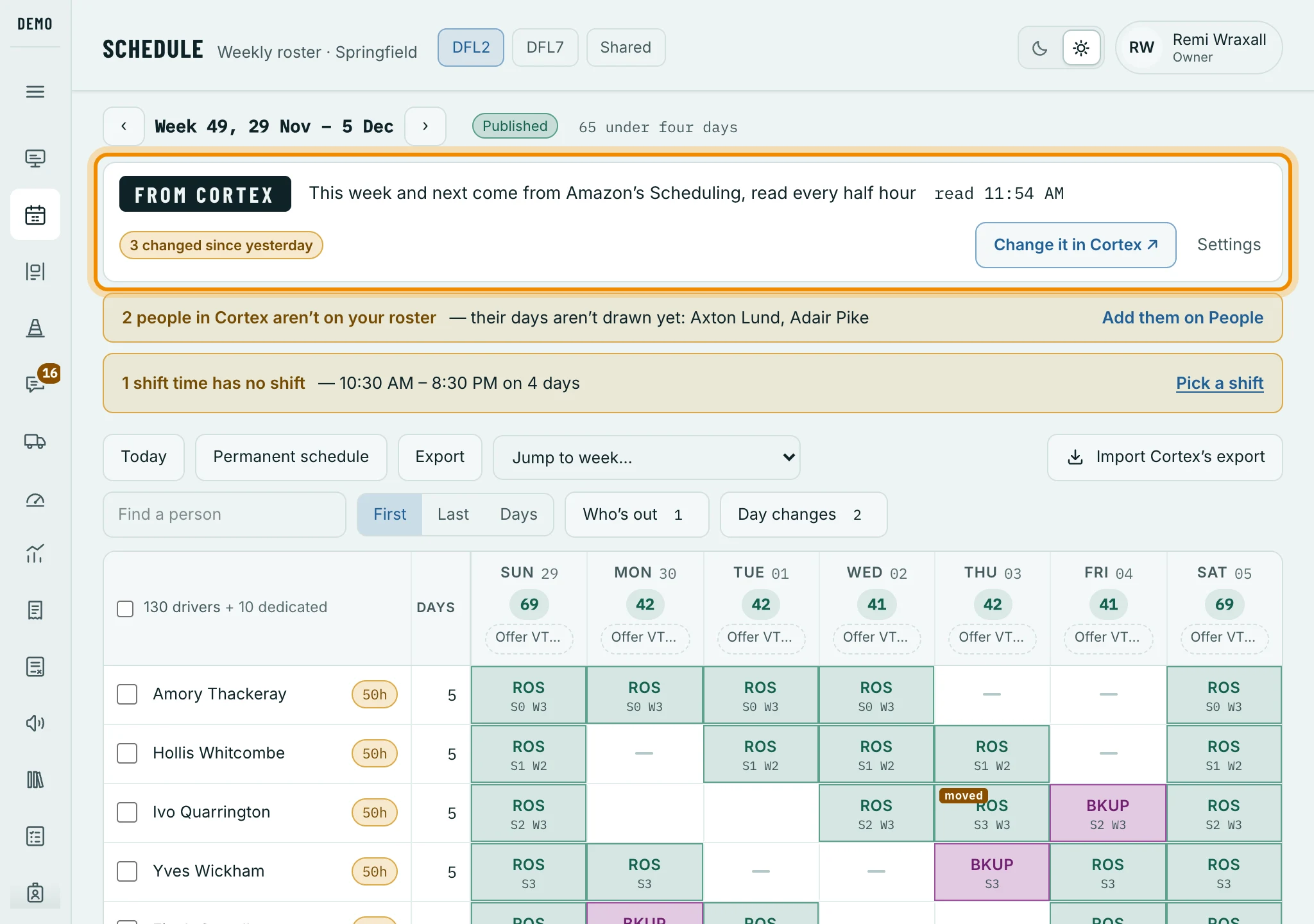
Following Cortex: the FROM CORTEX banner, circled, and no Publish this week at the top right — Cortex publishes the week.
Rules for both Cortex choices
- Changing a day
- Change it in Cortex. On OpsBrio’s Schedule page, the banner’s Change it in Cortex ↗ button opens that week in Cortex. A change made in OpsBrio is undone the next time OpsBrio reads Cortex.
- Call-outs, VTO, absences
- Record them in OpsBrio, on the day. Cortex doesn’t know about them.
- Approved time off
- In Cortex, mark the day Unavailable. OpsBrio shows it as Time Off.
- Helpers
- Cortex’s Helper shifts show in OpsBrio as Helper — no van, no route.
When a day comes off a published week
With any choice: when a driver’s working day is taken off a week that is already published — in OpsBrio or in Cortex — OpsBrio sends that driver a notification about 10 minutes later. One notification covers all of their changed days. If the day is put back within the 10 minutes, nothing is sent. During quiet hours, the notification waits until quiet hours end.

- Nobody is told about a day in the past, a driver who isn’t working or is leaving before that day, a driver with no OpsBrio login, or a day whose routes have already been sent to them.
- Adding a day, changing the status of a day that stays, and any change to a draft week send nothing.
- If that day’s Dispatch board is already built, the driver is listed on it under On the board, but off the schedule, with what they were told. Call anyone it says was not told.
Giving out work blocks in Cortex
With any choice, Amazon’s work blocks are given to drivers in Cortex, usually the evening before. OpsBrio reads who has which block every 30 minutes. To give a block to a driver:
Open Cortex’s Scheduling page and pick your station and the week.
Cortex › Scheduling
Click Work blocks rostered.
It is the first row of the grid, on the left. Under each day, the blocks with no driver yet open in groups by van size and start time — for example “Standard Parcel - Extra Large Van, 11:15 AM, 8 blocks”.
Click a group of blocks.
A box called Work block details opens. Don’t click Decline — that turns Amazon’s work down.
Click Assign.
Every driver’s box on that day now shows Assign.
Click Assign in the box of the driver who gets the block.
The block appears in that driver’s box straight away. Cortex asks nothing more.
Build tomorrow’s Dispatch board
Make sure tomorrow’s week is published.
Build the day stays greyed out until it is. With CORTEX, Cortex publishes it; with the other two choices, you do.
In OpsBrio, click Dispatch in the left menu, then Tomorrow.
OpsBrio › Dispatch
Tomorrow is in the bar at the top of the page, beside the arrows ‹ ›.
Click Build the day.
A box opens with the ways to build the day. Auto Roster is always first:
Auto Roster — puts everyone on the week on the board, then gives Amazon’s routes to the best of them by the six-week rank; everyone else waits as a Backup, and a driver the week lists as a Backup stays one. It shows Amazon’s routes as a row of small bars, one for each route. It is greyed out until Amazon’s routes for that day have come in.
OR
The schedule — puts everyone on the week on the board, in their usual wave and shift.
OR
Cortex (only if your station gives out work blocks in Cortex) — puts everyone with a Cortex work block on the board, in the block’s wave and that wave’s shift; everyone else on the week becomes a Backup. It is greyed out until Cortex has handed out blocks for that day.
A station with no rank yet (before its first scorecard week) and no work blocks in Cortex sees one Build the day button instead, which builds from the schedule.
The board fills with one line for each driver, each with a van. The box marks your last answer.
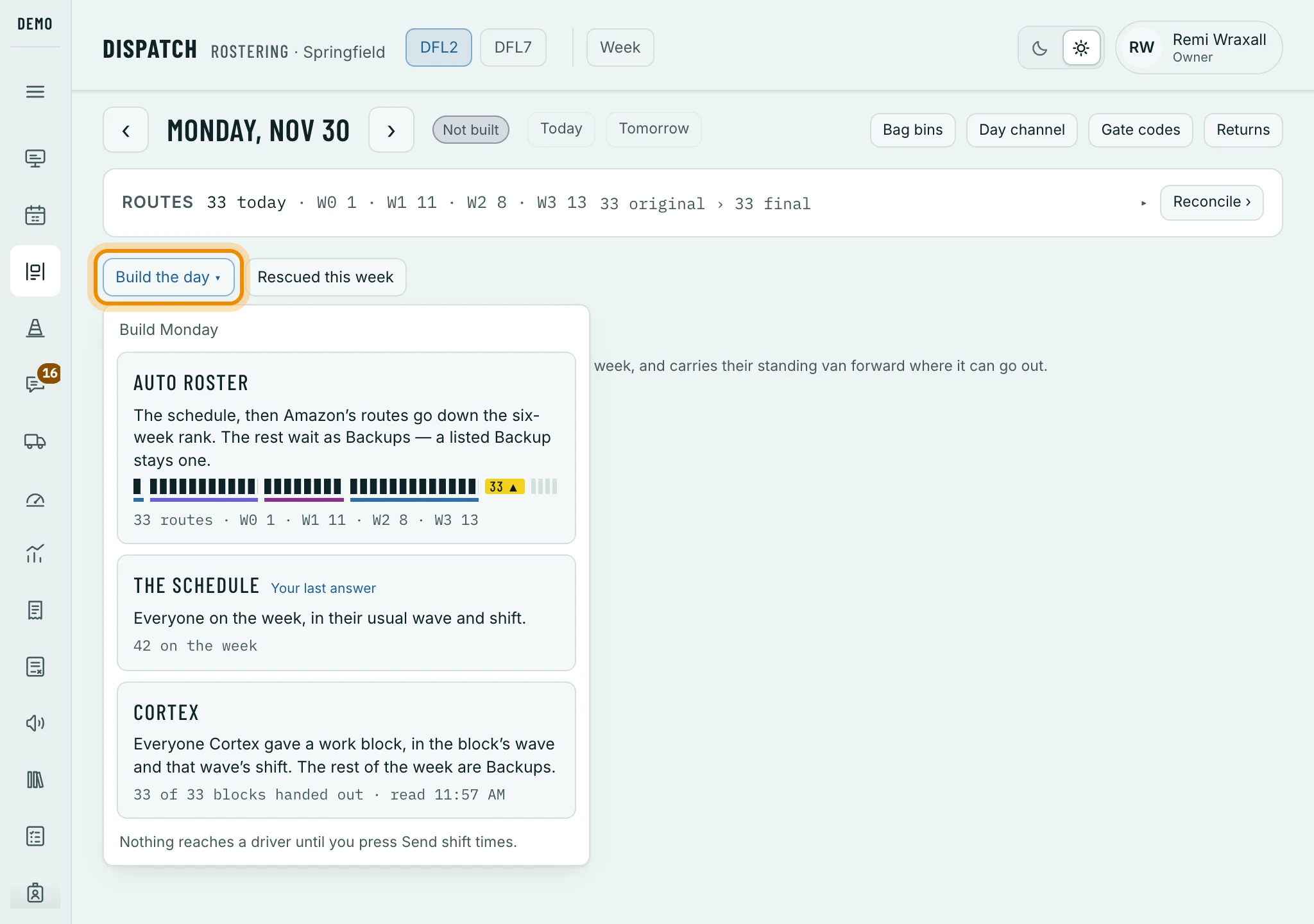
Build the day, circled, at a station that gets work blocks from Cortex: Auto Roster, the schedule or Cortex, with how many each puts on the board. Optional: click Auto Roster.
The button is at the top of the board, beside Rebuild, with a number beside it: Amazon’s routes for the day — “up to date” once it has run, or “+2 routes since 5:40 pm” when Amazon has changed the count since. A box opens that shows each wave’s routes filled down the rank, and every change line by line. Click Auto Roster to make the changes, or Not now. Before shift times go out it ranks the whole board again; after they go out it only gives new routes to the best Backups, and each driver whose shift time changed gets one notification.
Optional: click Overwrite from Cortex.
Whether you need it depends on how your station works — use it when work blocks were given out after you built the board, or changed since. The button is at the top of the board, with a number beside it: the blocks handed out, then how many changed since the last overwrite. A box opens that lists exactly what will change. To keep the lines somebody changed by hand (their status, wave or shift), tick Keep my N hand changes. Then click Overwrite from Cortex to make the changes, or Not now.
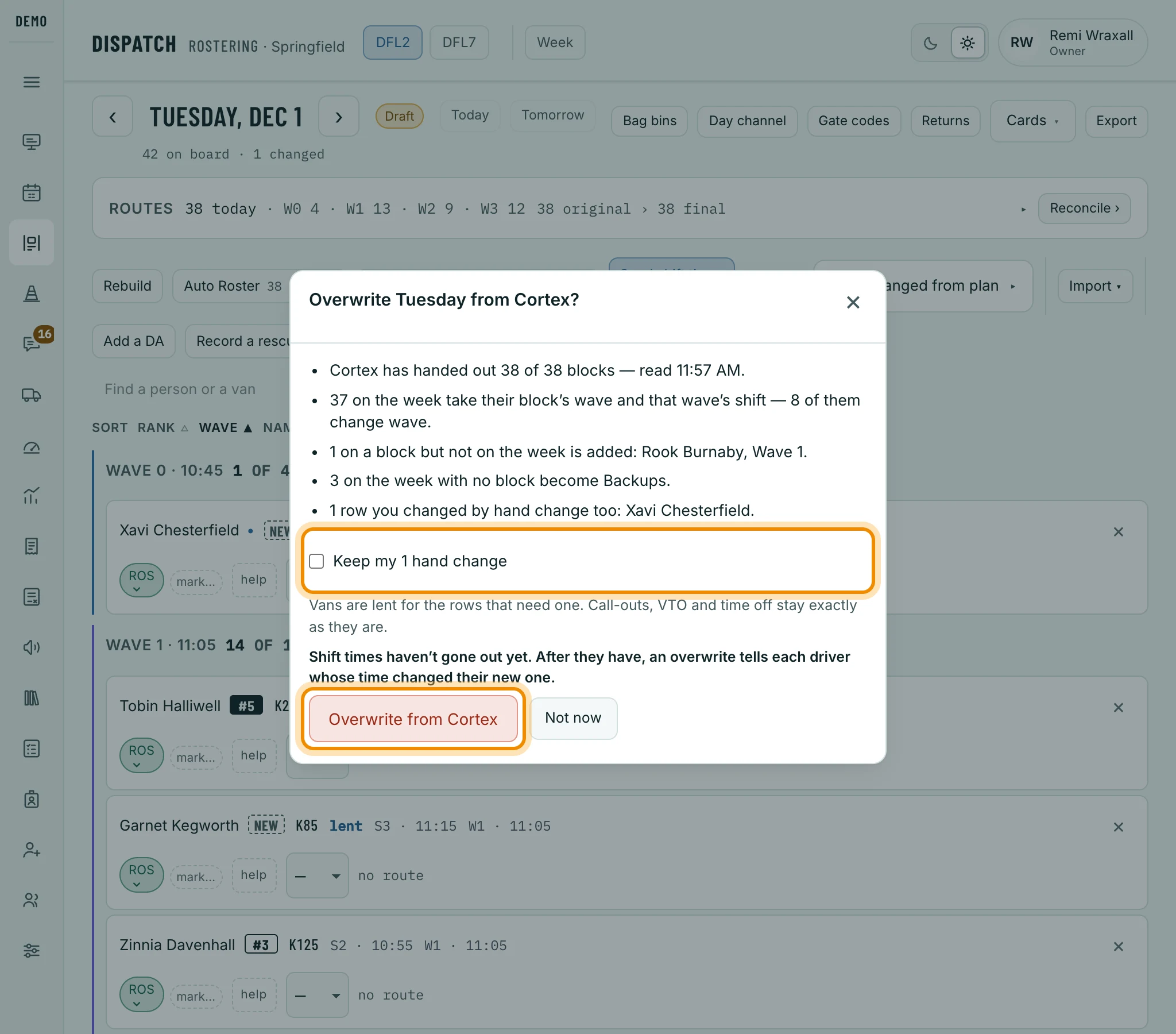
The box Overwrite from Cortex opens: every change, line by line. Keep my hand changes and the red Overwrite from Cortex are circled. If N changed from plan shows under Send shift times, click it.
It lists what changed on the week since the board was built — Scheduled tomorrow, not on the board, On the board, but off the schedule, On the board, but now on leave, Van pulled since the build — and each line says what to do. When it says “The board and the schedule agree.” there is nothing to fix.
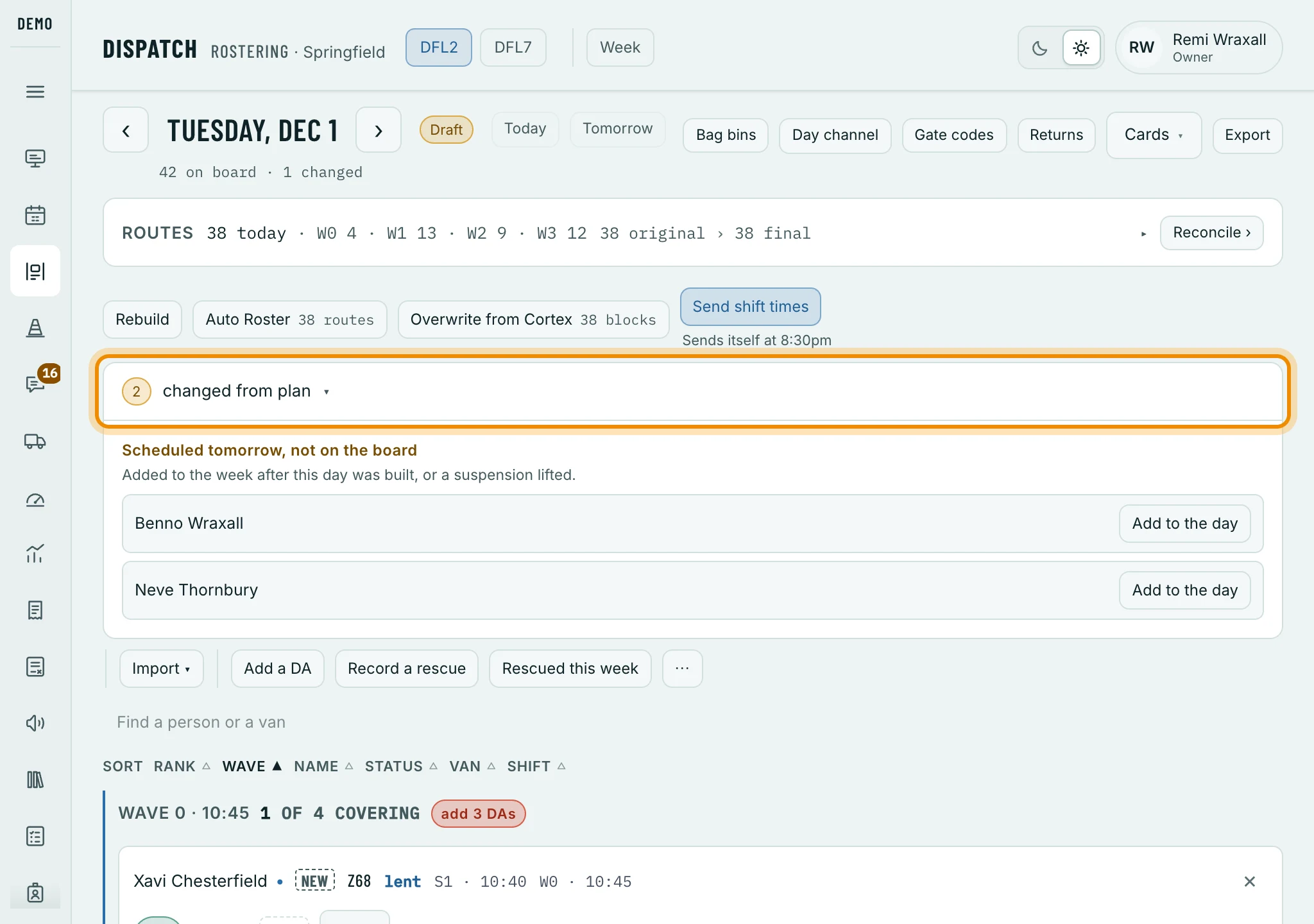
The top of a built board: Overwrite from Cortex with its count, Send shift times, and “2 changed from plan”, circled and opened — two drivers put on the week after the board was built. Click Send shift times.
Every driver on the board gets a notification with their shift time — only the time; their route and van go out the next morning. If nobody clicks it, the board sends shift times by itself at the time set in Settings › When the board sends itself.
What Overwrite from Cortex — and the Cortex answer on Build the day — does to each driver’s line:
- A driver with a block
- Becomes Roster, in the wave that starts at the block’s start time, with that wave’s shift.
- A Roster driver with no block
- Becomes a Backup. Backups, Helpers and first-day drivers stay as they are.
- A helper’s block
- Becomes Helper, in the block’s wave. A trainer’s rider seat moves nobody.
- A driver with a block who isn’t on the board
- Is added to the board and to the week — unless they are on leave, not active, on another station’s week or were taken off by hand; then the box lists them instead.
- Called out, VTO, time off
- Never changed.
- Vans
- A driver who needs a van keeps their own if it can go out; otherwise OpsBrio lends one, the block’s van size first.
- A block time no wave starts at
- The driver keeps their own wave and shift, and the box says which time has no wave — add it in Settings › Waves.
If a shift time changes after shift times were sent
Change the shift on the driver’s line as usual. OpsBrio tells that driver alone, about 10 minutes later — the same when you use Add a DA or Overwrite from Cortex. A message on the driver’s line says so as you change it; change it back within the 10 minutes and nothing is sent. During quiet hours, the notification waits until they end. If the driver has no OpsBrio login, the message tells you to call them instead.
Re-send times sends every driver their shift time again. You will rarely need it now.
Changing your company’s choice
In OpsBrio, open Settings › Where the week is made.
OpsBrio › Settings › Where the week is made
You need permission to change Settings.
Click the box you want.
Nothing changes yet. For CORTEX DRAFT or CORTEX, OpsBrio reads what Cortex has for this week and next and shows it under THE FIRST READ: the people Cortex schedules, how many of them are in OpsBrio, and how many are not.
Read the bold line above the buttons.
If switching takes working days off a week drivers can already see, it says how many drivers will get a “Your schedule changed” notification — for example “12 drivers are told their schedule changed — one push each, about ten minutes after you switch.”
Click Plan in Cortex, publish here (for CORTEX DRAFT) or Follow Cortex (for CORTEX).
This week and next take Cortex’s days straight away; earlier weeks stay as they were. Not now cancels.
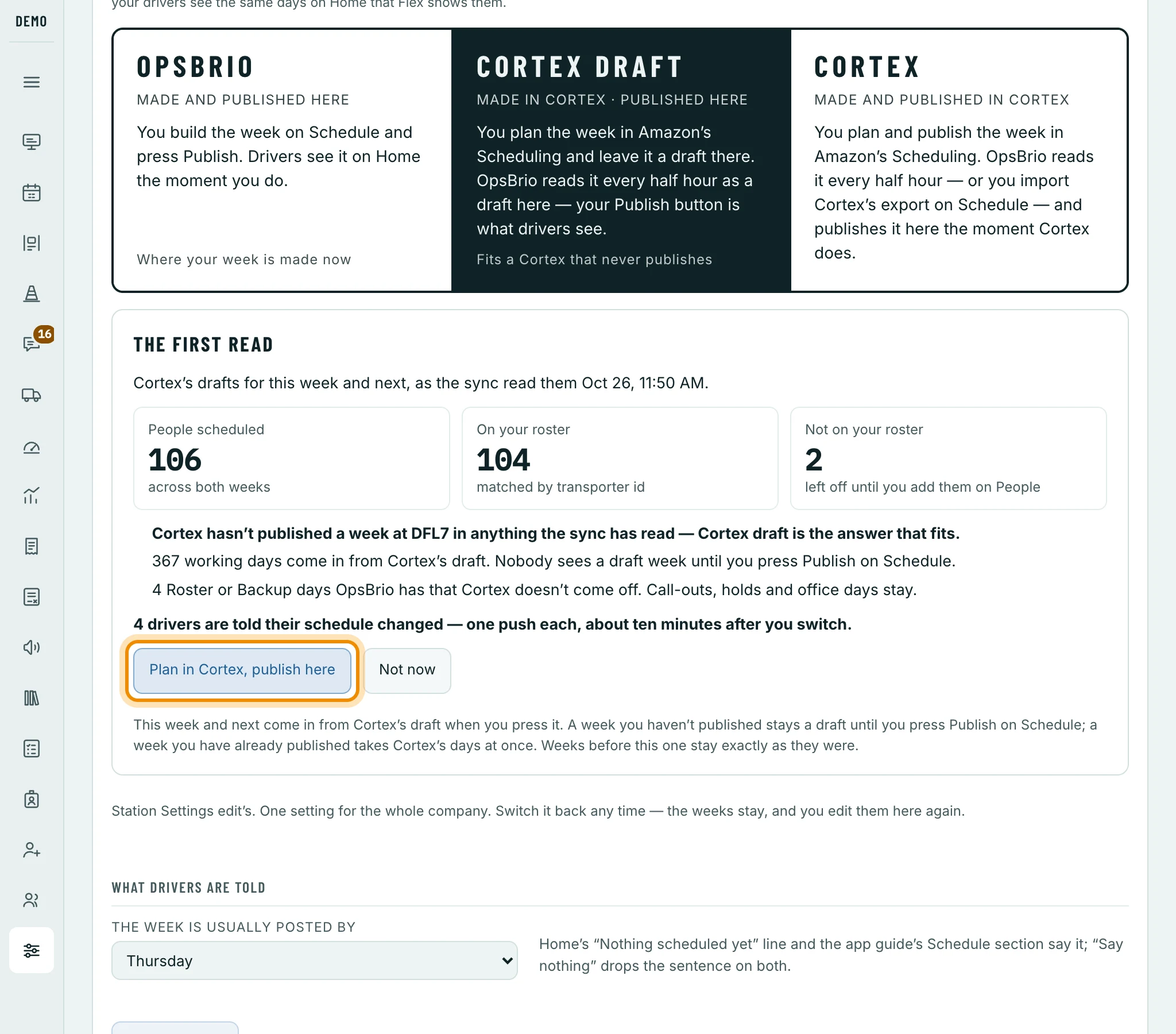
CORTEX DRAFT clicked: THE FIRST READ — who Cortex schedules, what comes in and what comes off — the bold line saying who is told, and Plan in Cortex, publish here, circled.
To go back, click the OPSBRIO box, then Make the week in OpsBrio. The weeks stay as Cortex last left them, and you make and publish them in OpsBrio again. OpsBrio keeps reading Cortex’s route counts and Flex clock times either way.