The office · dispatchers first · 9 min read
Chat
Chat is where the office and the drivers talk through the day. Open it and the chats you answer are already there — nothing to set up. First choose how it is laid out; then this guide walks a working day on a computer, and the same day on a phone.
Choose how Chat is laid out
Your account menu › Chat layout
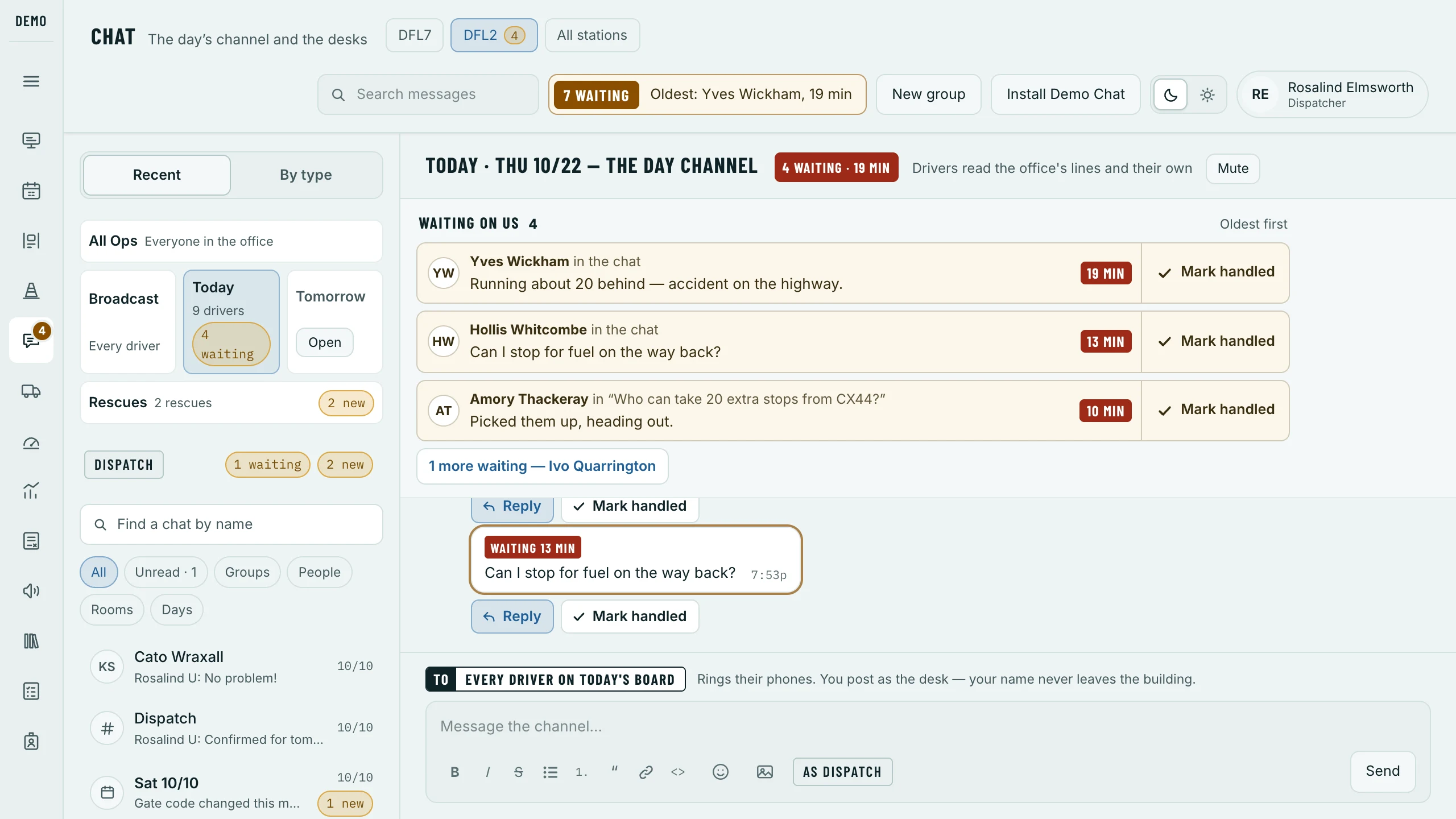
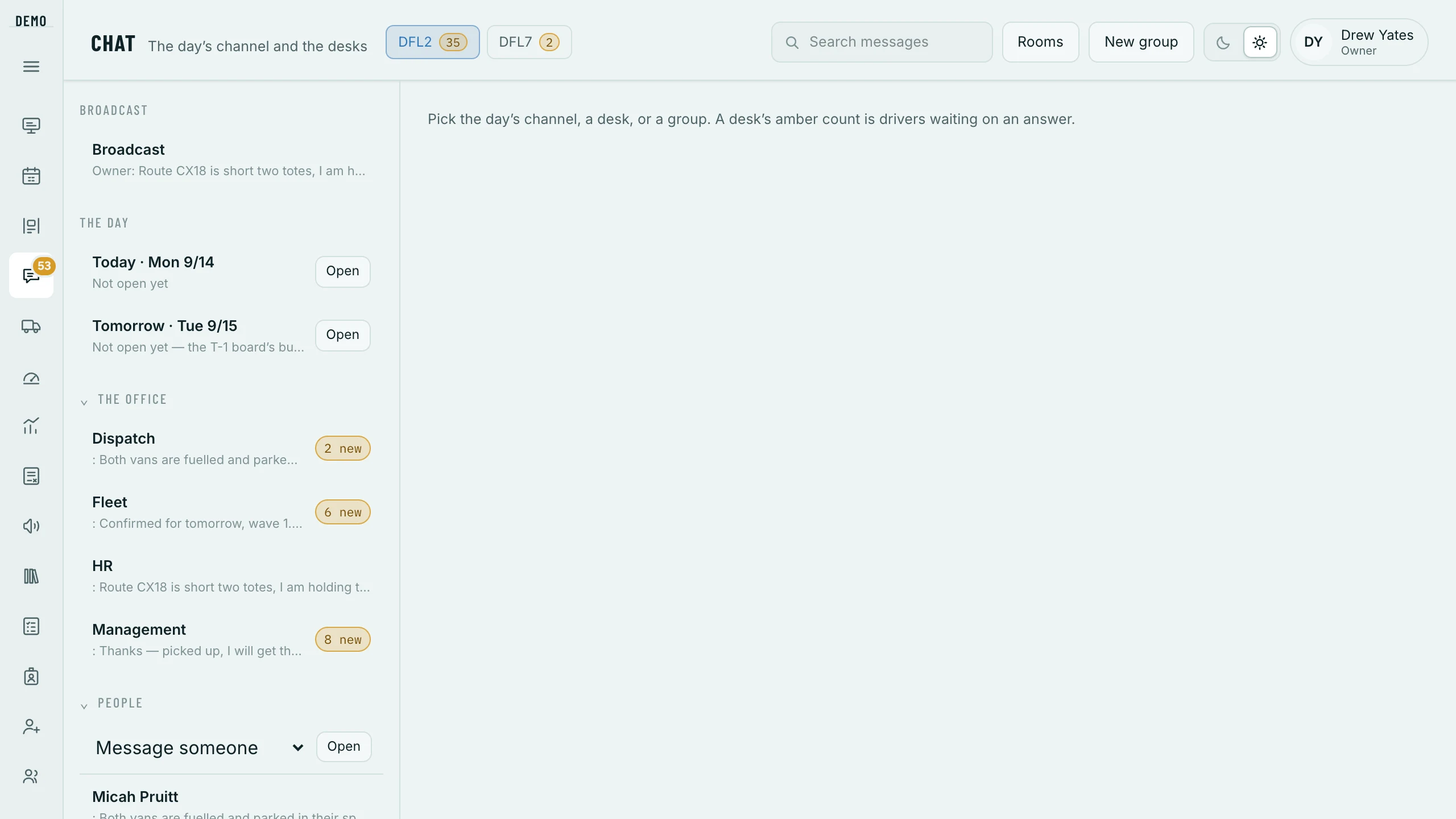
Chat opens one chat at a time: the list of every chat on the left, each with its count, and the chat you open beside it. If you work several chats at once — the day chat, the desk, the rescues — choose The wall instead: the chats you answer side by side, up to five, with the list pinned at the left. Either way WAITING at the top counts the drivers waiting on you.
Click your initials, top right, to open your account menu.
Under Chat layout, click The wall or One chat at a time.
Chat redraws at once. The choice is yours alone, and it follows your login to every computer and phone.
The wall
Chat, with The wall chosen
The chats you answer are your wall, and Chat makes it from your job. A dispatcher’s is today’s day chat at each of their stations, the desk they staff, today’s rescues and All Ops — side by side on a computer, up to five. It is the same on every computer and phone you sign in on, and the day chats move on to tomorrow’s by themselves.
- WAITING
- At the top: how many drivers are waiting on you for an answer, in every chat you answer, and who has waited longest.
- All chats
- The list, pinned as the first column: every chat with its count. ‹ folds it to a strip of chips — one for each chat you answer — and ALL on the strip opens it again.
- A column
- One chat. Its name across the top with its own count of drivers waiting — amber, red from ten minutes — then ⇄, ⋮ and × beside it.
- Waiting on us
- At the top of a chat: the drivers waiting in it, oldest first.
Answer a driver who is waiting
A driver’s message waits on the office until somebody in the office answers them. While it waits it wears WAITING and the minutes — red from ten — and it is counted at the top of its chat and at the top of the screen. Reading it changes nothing; only an answer does.
Click Reply under the message — or WAITING at the top, or the driver’s name under Waiting on us.
Their message opens in its thread, with the cursor already in the box.
Type your answer and press Enter.
The To line above the box says who will read it: that driver and the office. Only their phone rings. Esc takes you back to the chat.
Then the next one.
The drivers still waiting are listed at the top of the thread, Next, oldest first.
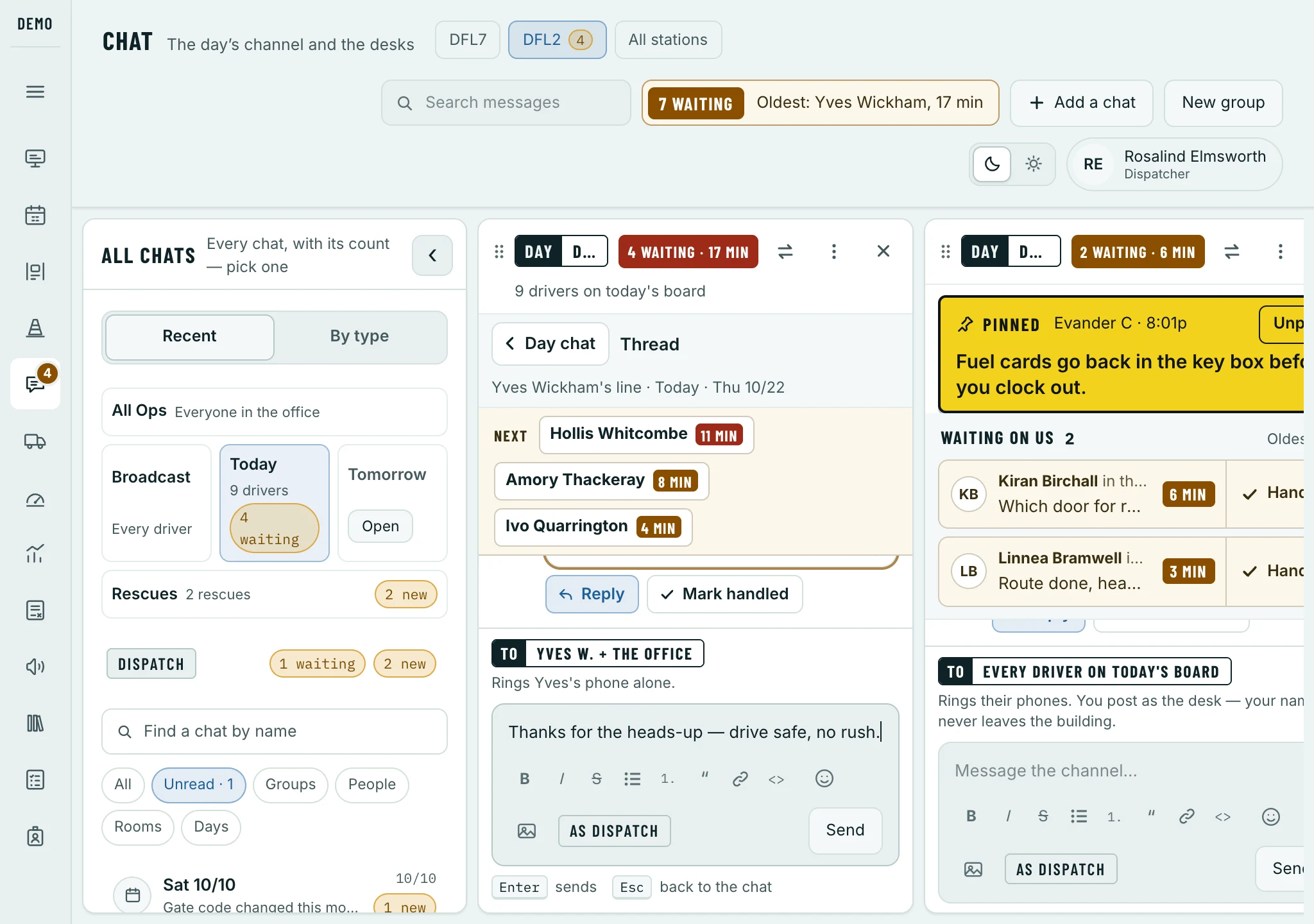
You never have to click into a box first: start typing, and the words land in the box of the chat you last clicked. And a driver’s name on any message opens their profile — in a new tab on the wall, so your columns stay where they are.
Keep a chat on your wall
Open the chat — its chip on the left, or All for every chat and the search.
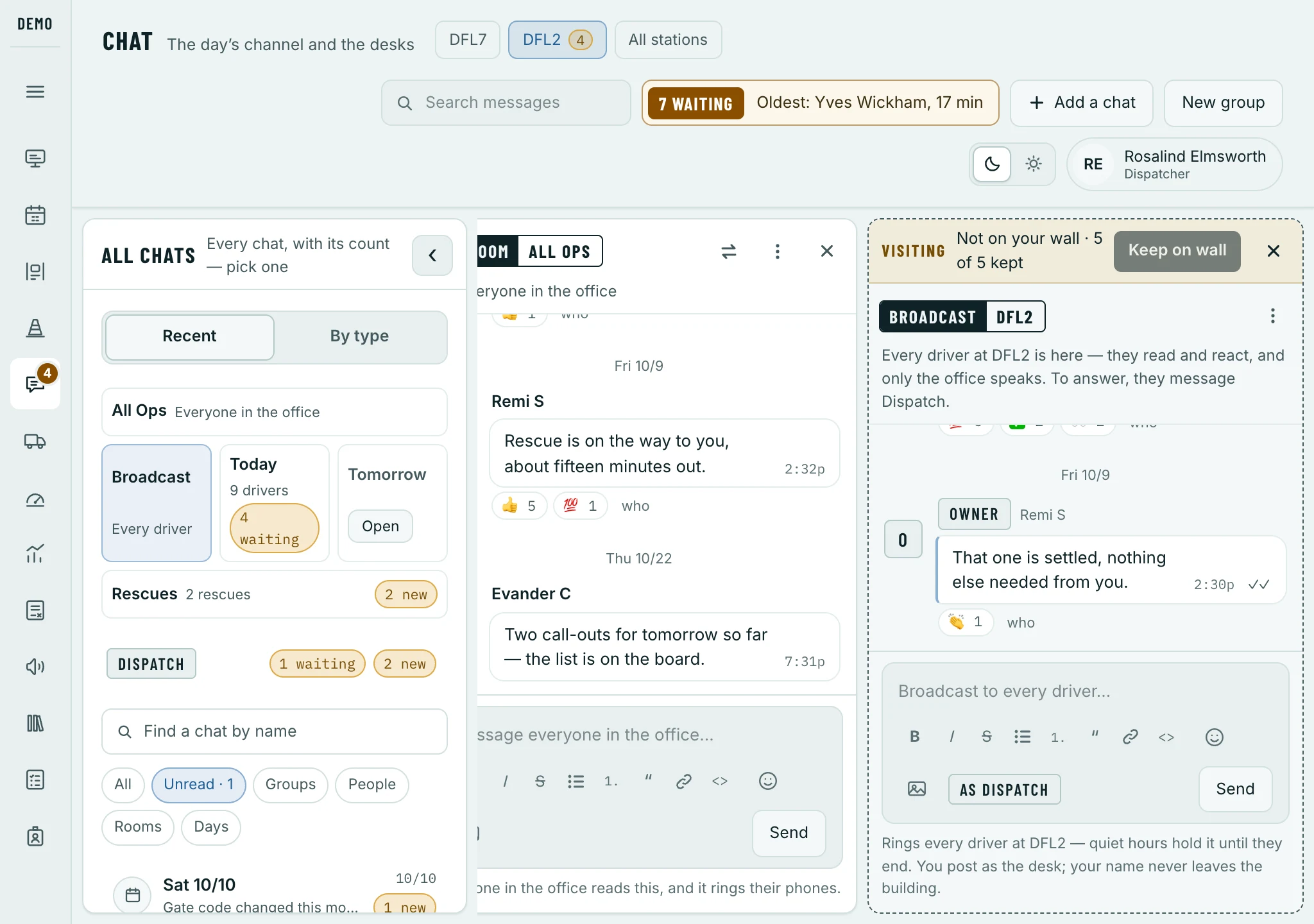
A chat that is not on your wall opens at its end as a visit: Visiting · Not on your wall. It stays until you open another one.
Click Keep on wall — the pin.
Your wall holds five. With five on it, Chat asks which chat this one takes the place of. Nothing comes off until you pick.
Or Add a chat, at the top: it lists every chat you can put on your wall — tick one to put it on, untick one to take it off.
Arrange your wall
- Drag a chat by ⠿, beside its name, to move it along the wall.
- ⇄ shows a different chat in that column.
- × takes the chat off your wall. The chat itself carries on.
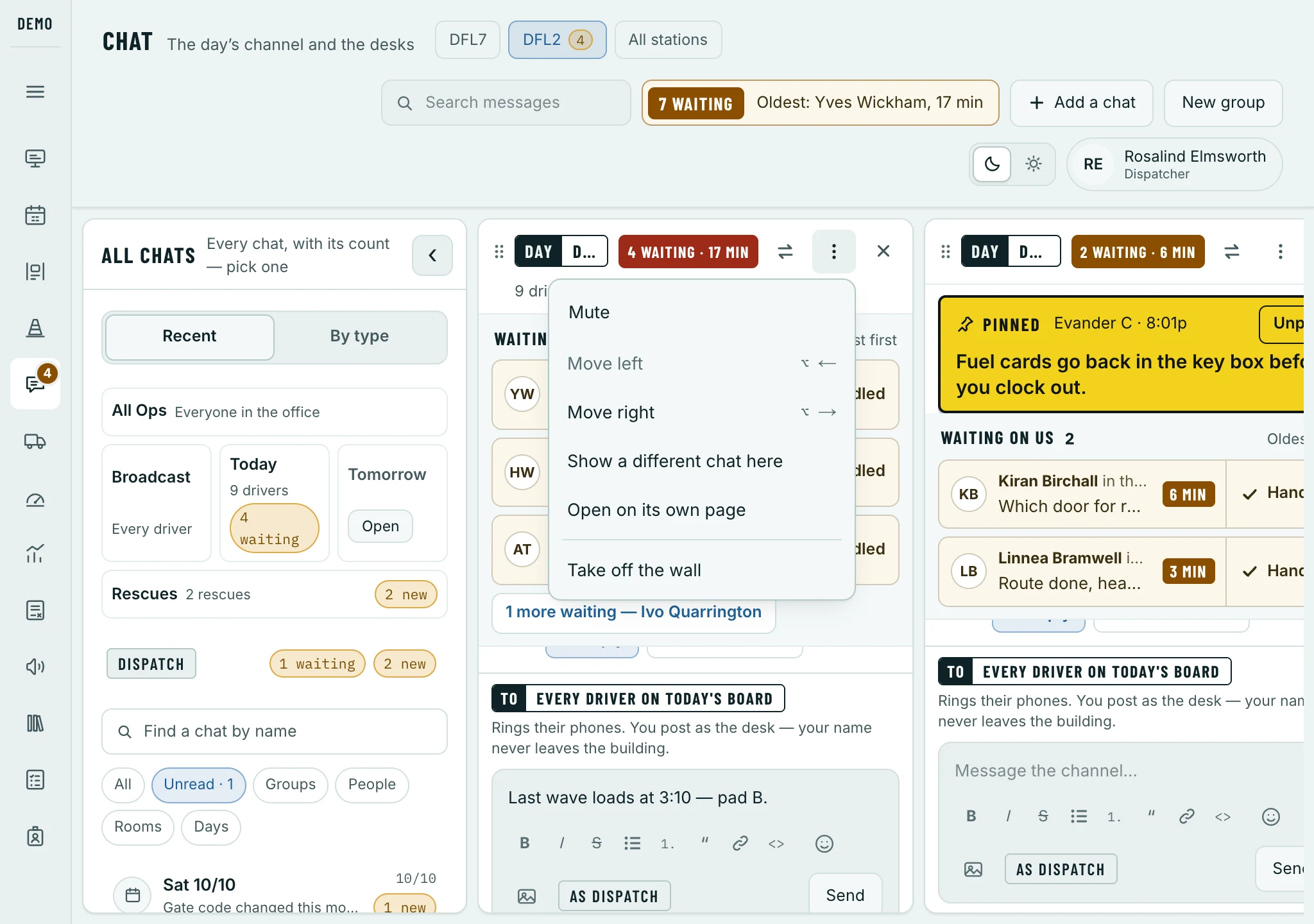
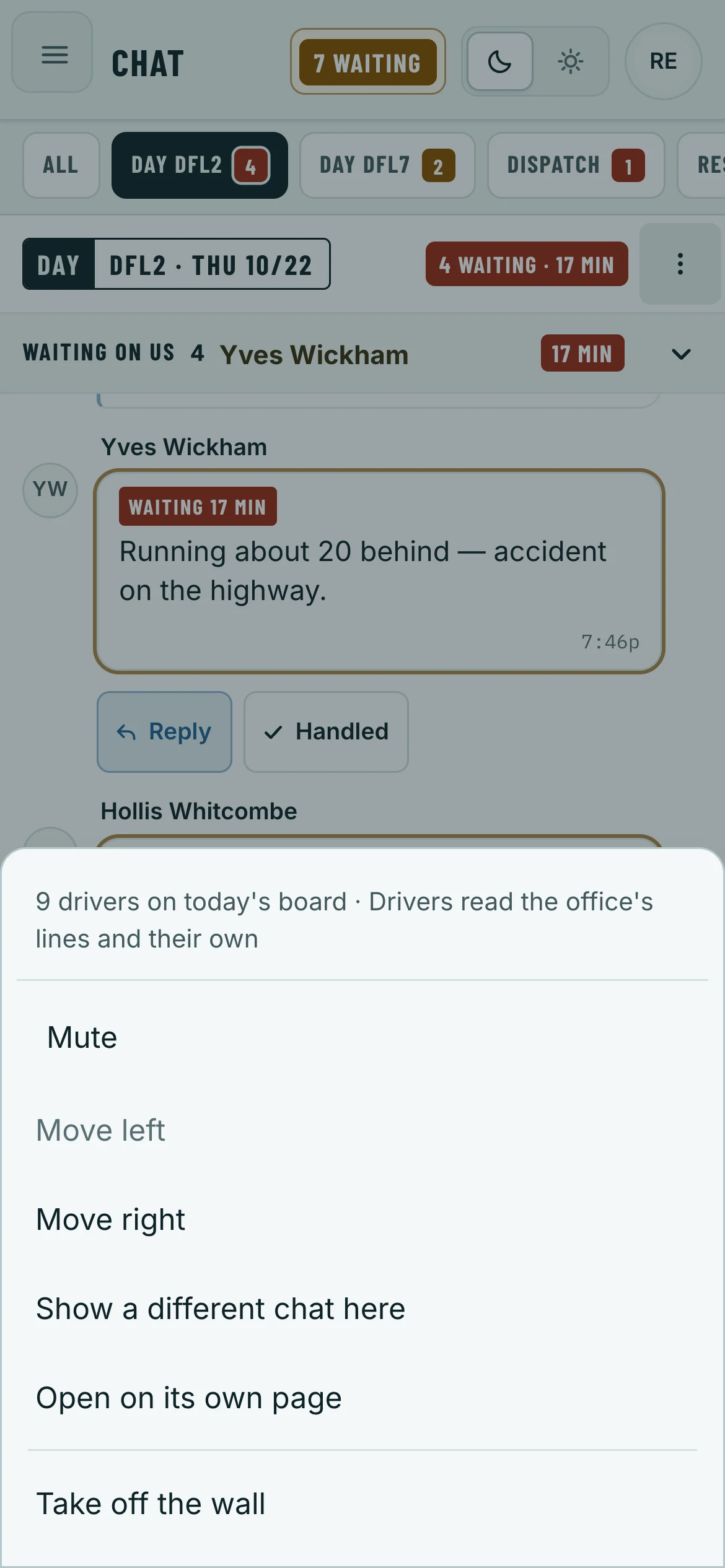
- ⋮ opens its menu: Mute (the chat stops ringing your phone, on every device — a message that names you still rings), Move left, Move right, Show a different chat here, Open on its own page and Take off the wall.
Pin a message
A message everybody should keep seeing — the gate code, where the fuel cards go — can stay at the top of its chat.
Rest the mouse on the message and click Pin.
It sits under the chat’s name for everyone in the chat, drivers included — up to three in a chat. Drivers see the desk as the one who pinned it, never your name.
Click the pinned words to jump to the message in the chat.
With more than one pinned, 1 of 2 › steps through them.
Click Unpin to take it down.
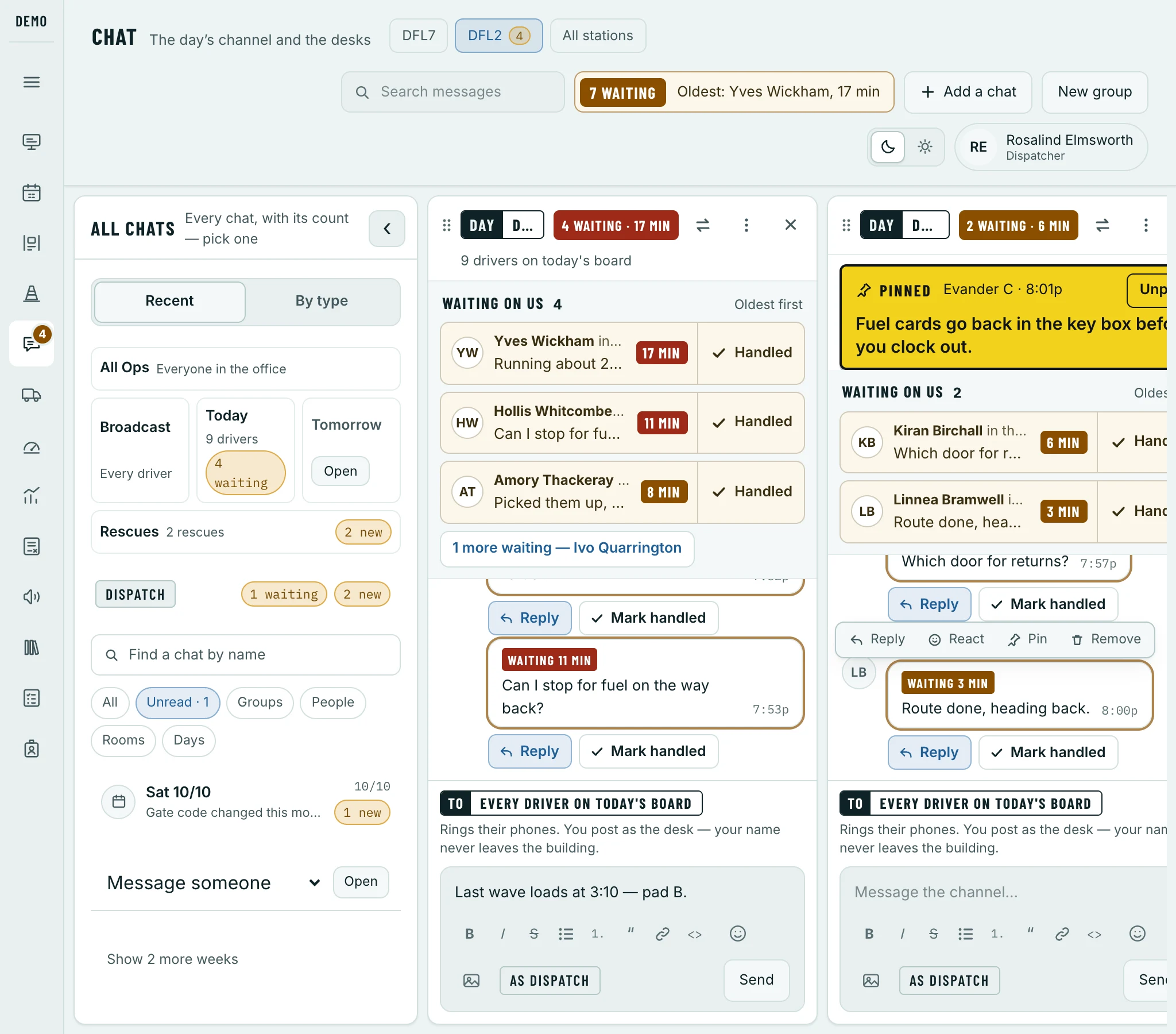
Only the office pins, in any chat it can write in.
Who reads what you send
- To
- Who will read it, written above the box before you send. In the day chat: every driver on today’s board. Answering one driver: that driver and the office.
- As
- Who it comes from. In the day chat and on a desk, drivers read the desk’s name — Dispatch — never yours.
A driver’s message in the day chat is read by the office alone, so when you answer one driver the rest of the board never sees it. An Owner can open the day chat to everyone on the board on Settings › Chat.
Desks and rescues
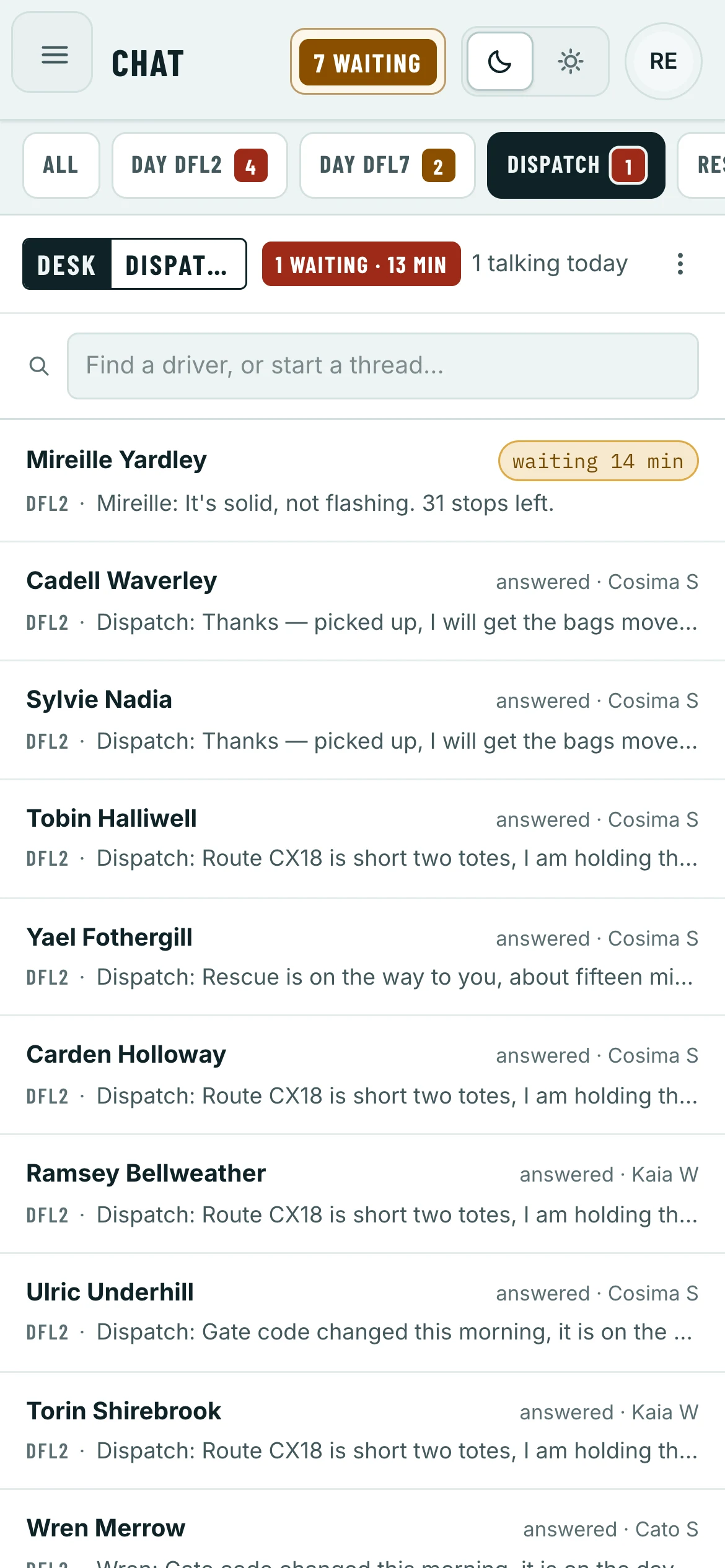
A desk — Dispatch, Fleet, HR — is how a driver reaches the office rather than one person who might be off. It lists the drivers who wrote to it, waiting first: open one for the conversation. Everyone who staffs the desk sees the same list, and one answer answers for all of you.
Every rescue gets a chat of its own the moment it is confirmed: whoever confirmed it, both drivers and the desk’s staff, opened with where to meet and what to hand over. The rescue column holds today’s, newest first — ‹ › step between them.
On a phone
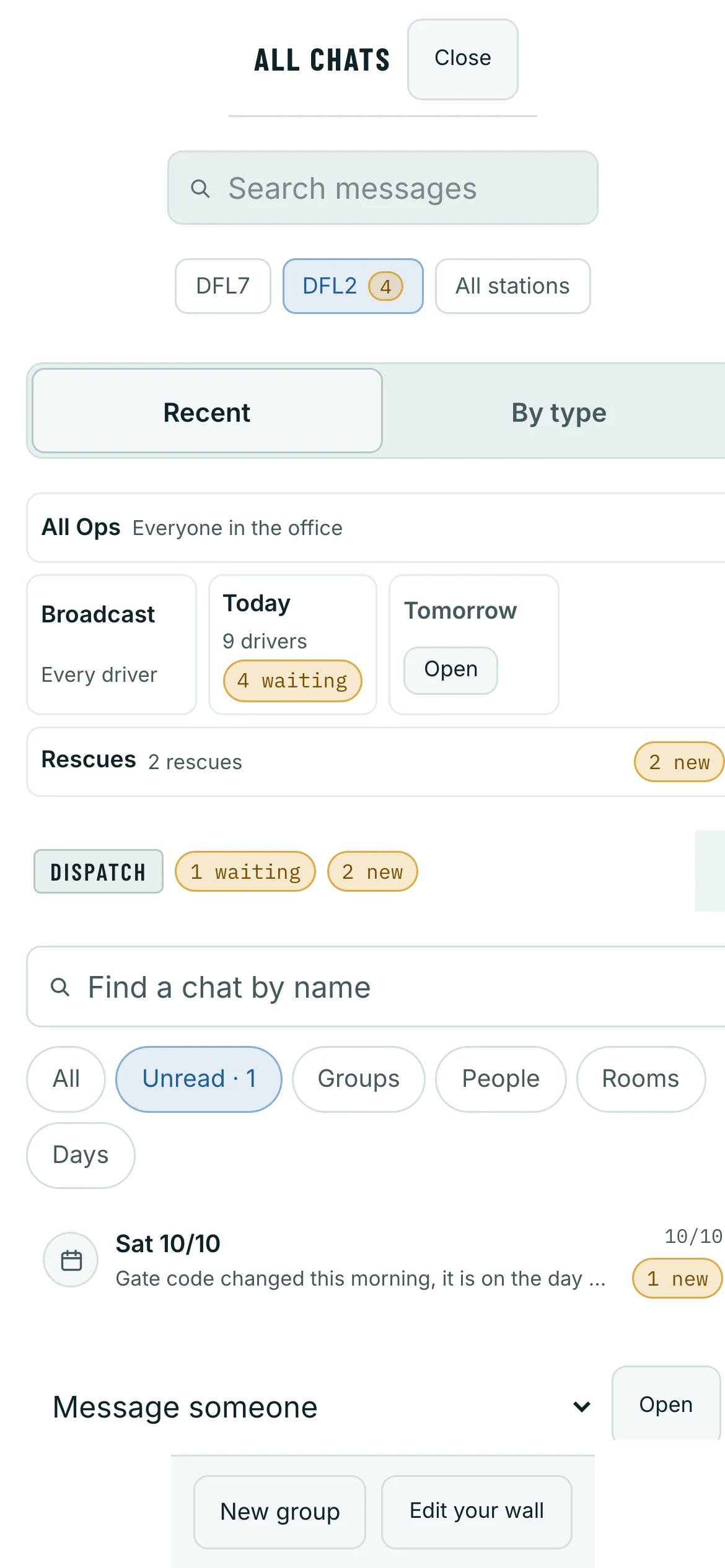
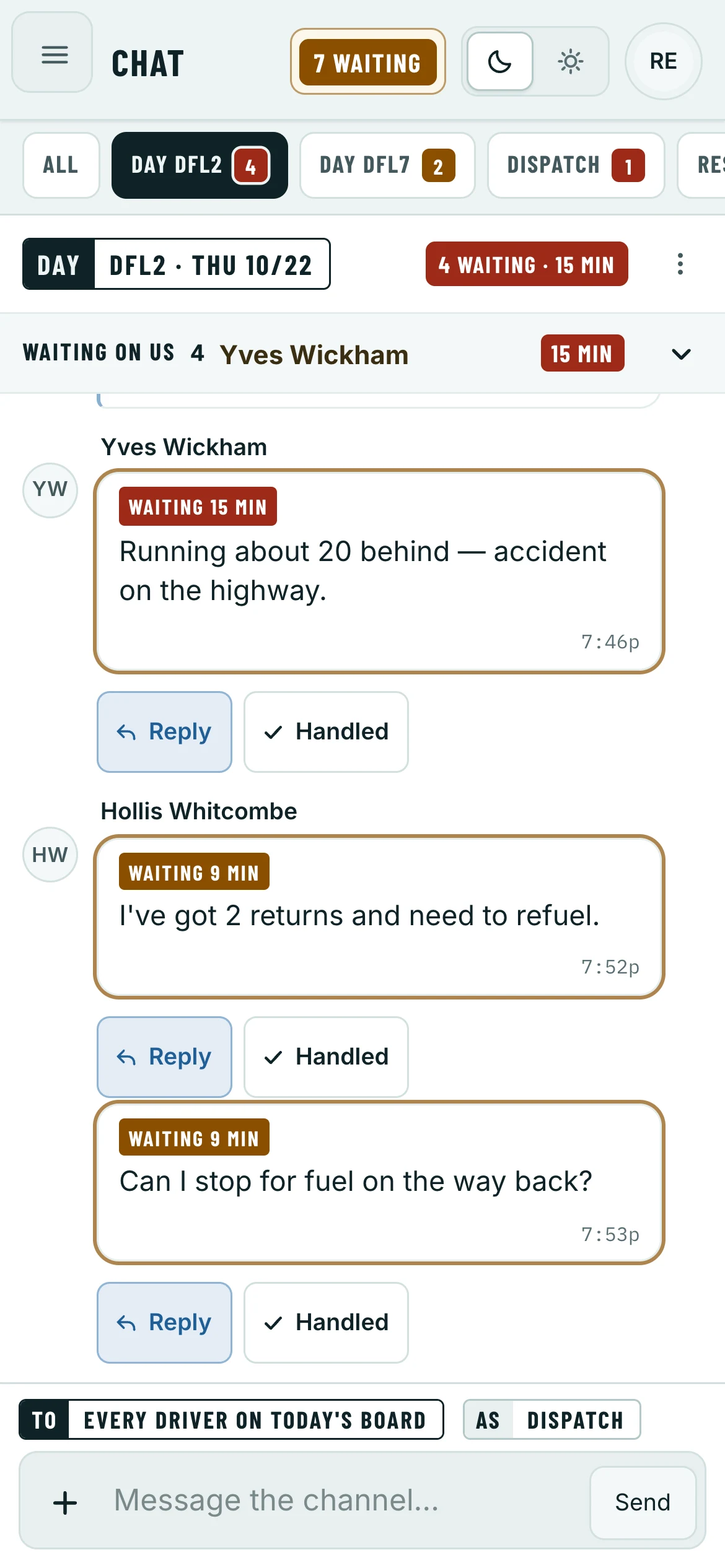
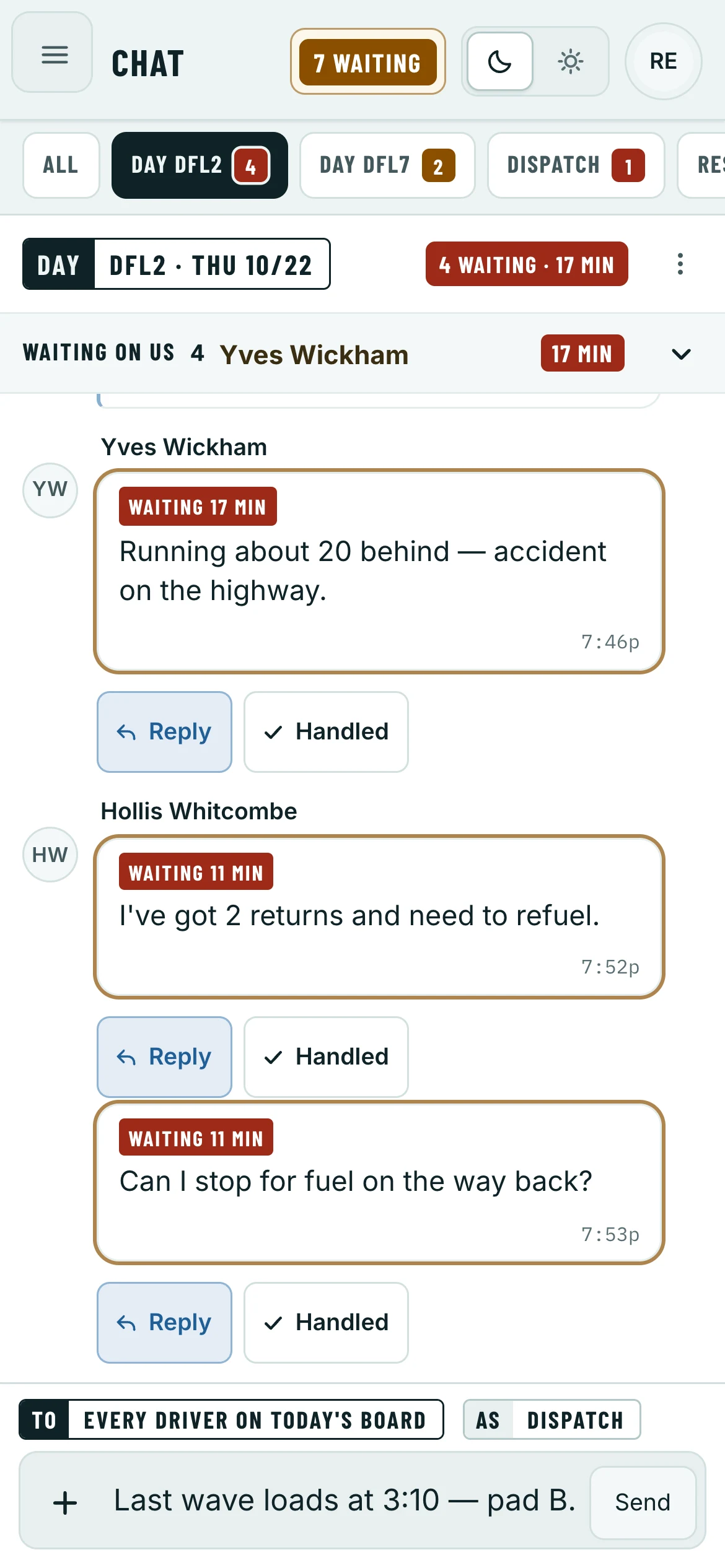
The same choice on a phone. One chat at a time is the list, then the chat you tap. The wall opens on All — every chat with its count — and the chats you answer are tabs along the top, each with its own waiting count. WAITING, Keep on wall and every menu work as they do on a computer. These are the phone’s own parts.
Answer from your phone
Tap WAITING at the top.
Everyone waiting on you, oldest first: who, which chat, their words and how long.
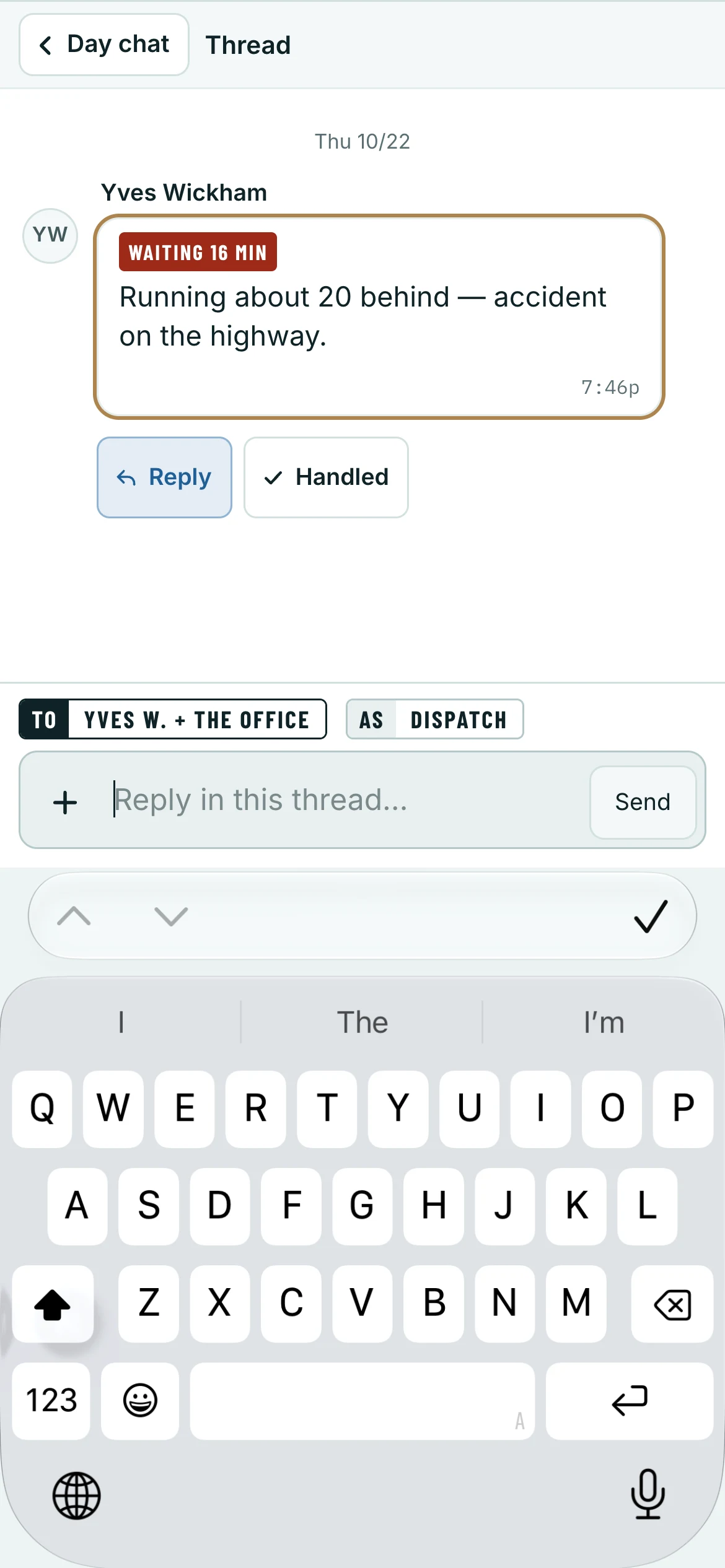
Tap a driver.
Their message opens with the box under it and the keyboard already up.
Type your answer and tap Send.
As on a computer, only that driver’s phone rings.
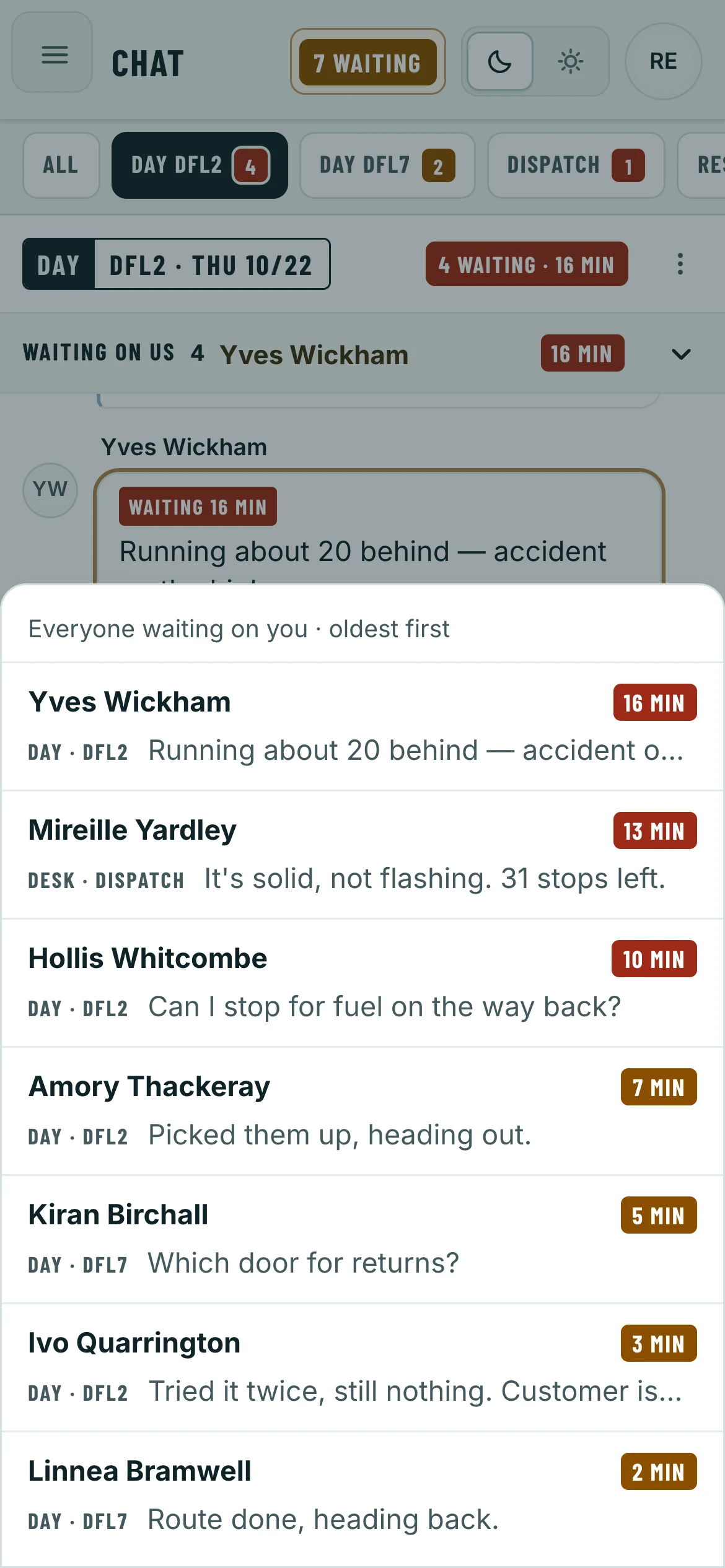
Tap ⌄ on the Waiting on us line at the top of a chat to list everyone waiting there, each with Handled. Tap a message for Reply, React and Pin.
While you type
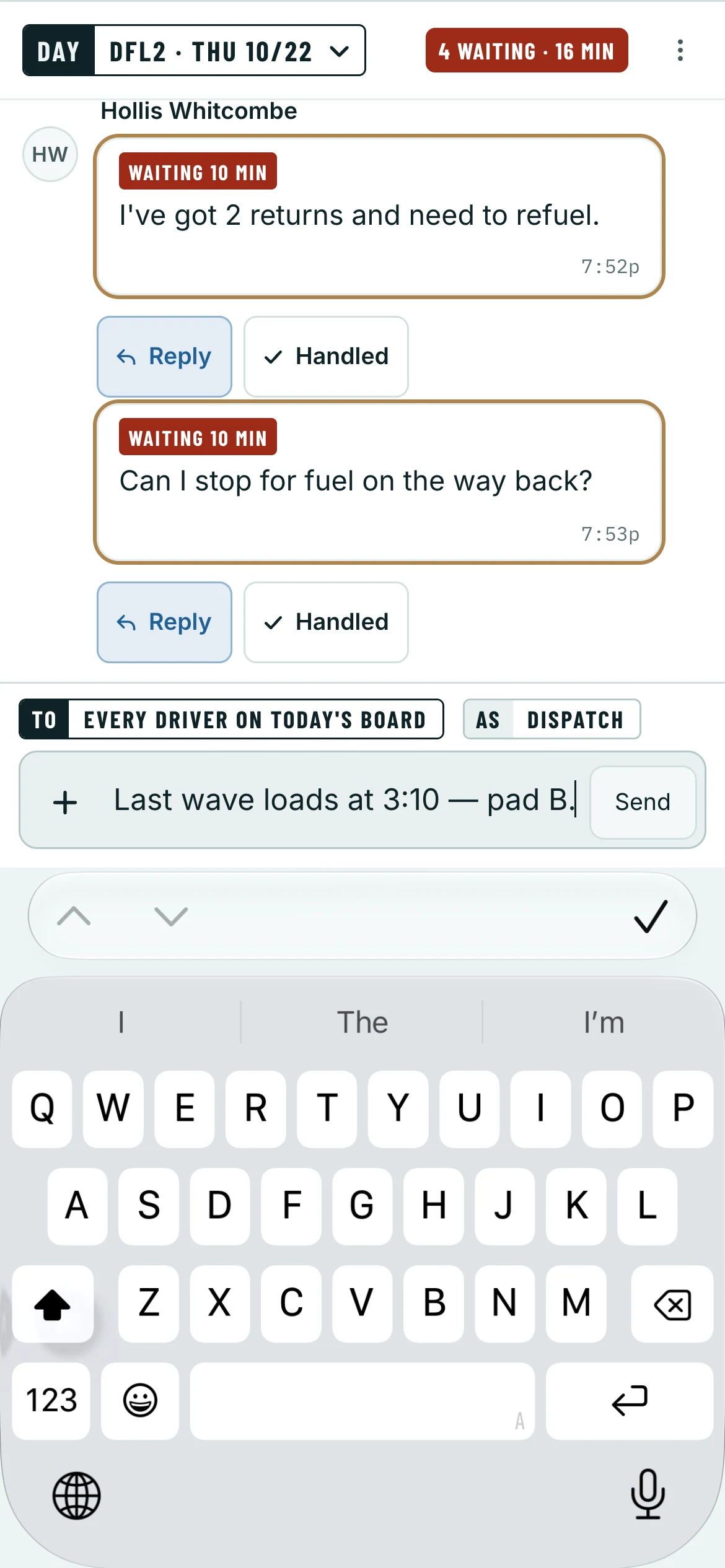
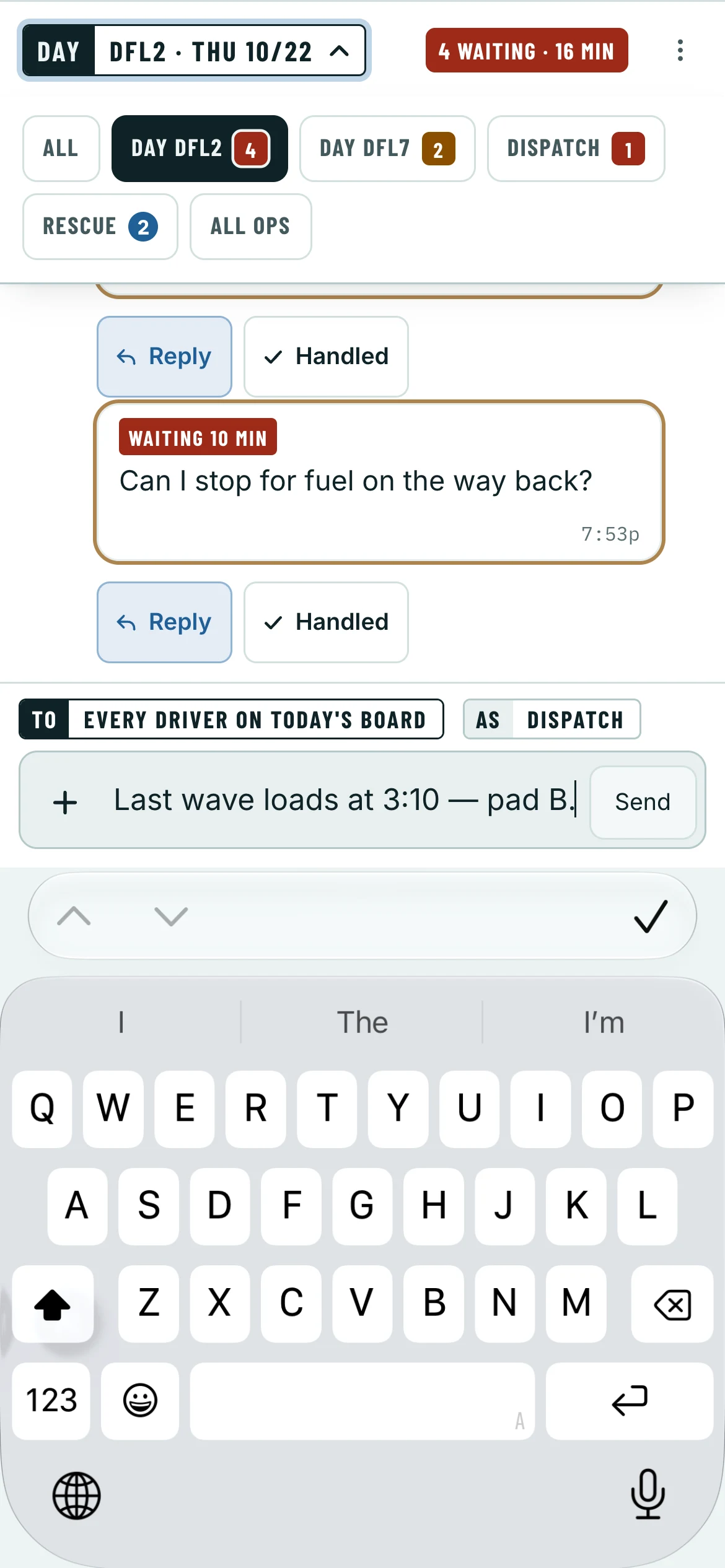
When the keyboard comes up, everything above the chat folds away: the chat keeps the screen, Send sits just above the keys, and the chat’s name is the one line left at the top. The + beside the box holds the photo, the emoji and the formatting. To get to another chat without losing your place:
Tap the chat’s name at the top. Your tabs drop down, and the keyboard stays up.
Tap another tab. That chat comes to the front, ready to type in.
Whatever you were writing stays in the first chat’s box for when you go back.
Find and keep a chat on a phone
Tap All, the first of your tabs — where Chat opened.
Every chat you can open: the search, your stations, Recent or By type, and New group.
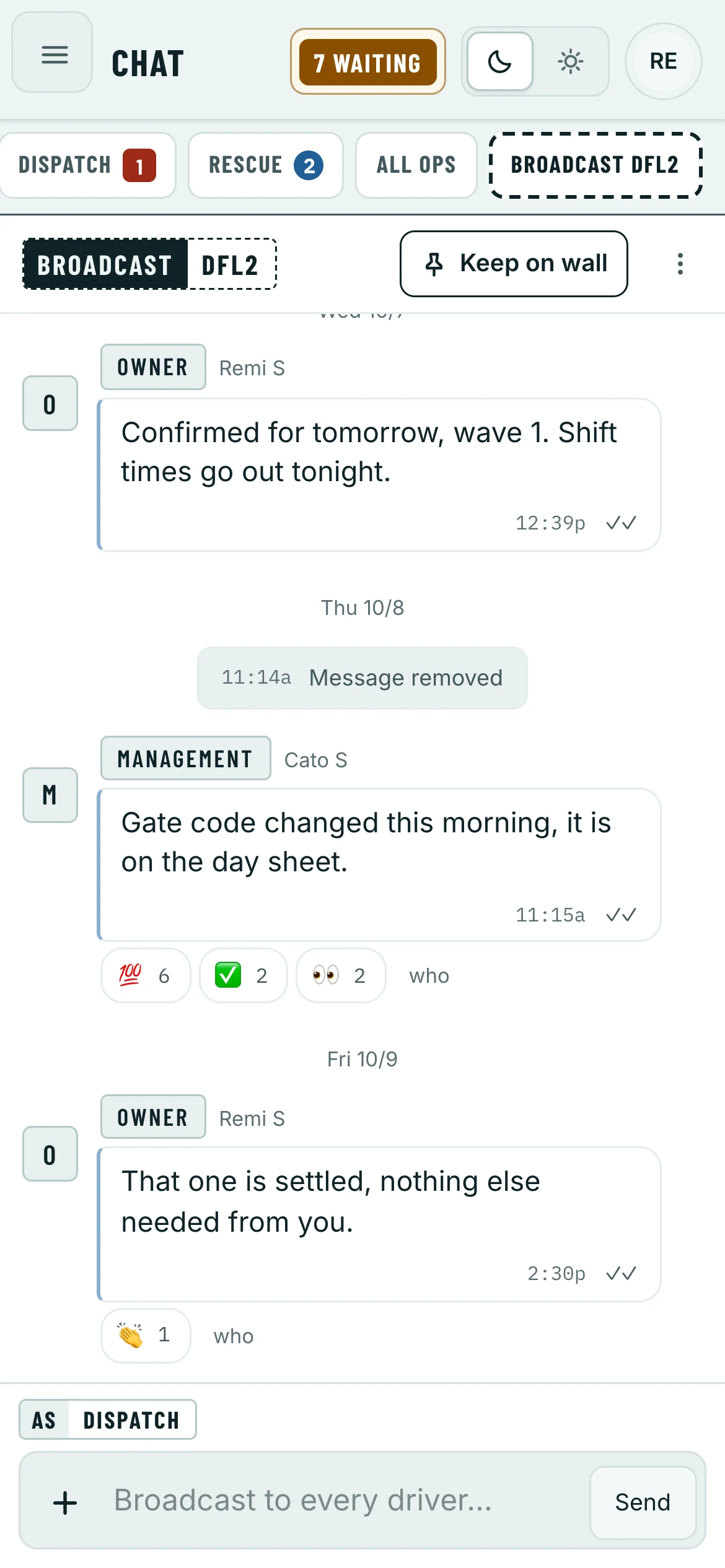
Tap a chat. It opens as a visit: a dashed tab at the end of your wall.
It stays there until you open another chat that is not on your wall.
Tap Keep on wall to keep it.
Change your wall on a phone
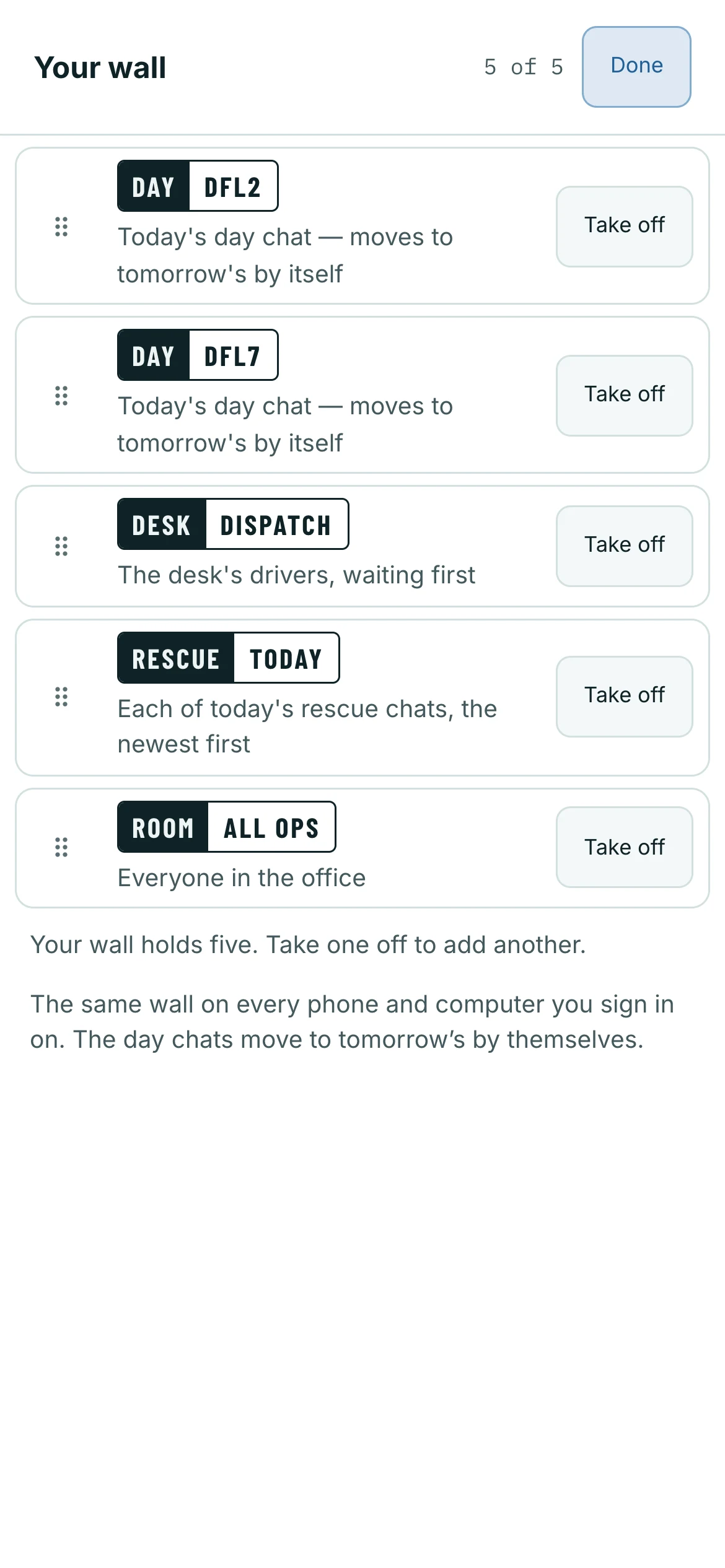
Chat › All › Edit your wall
Tap All, then Edit your wall at the bottom.
Drag a chat by its handle to move it.
This order is the order of your tabs.
Take off removes a chat. Add a chat puts one on while there is room.
Tap Done.
To go back to the wall Chat made for you: Start over — the chats you answer, at the bottom.
Desks and rescues on a phone
A desk and today’s rescues are tabs like any chat: tap a driver on the desk to open the conversation, and ‹ › to step between rescues.
Hear it when a driver writes
Open your account menu — your initials, top right — and click Turn on notifications, once on each computer and phone you use. The day chat and the Dispatch desk ring whoever from the office is on that day’s schedule, so a day off stays quiet; a chat’s own Mute quiets that chat alone.